

Favicon Grabber: How to Download Any Website’s Favicon (and Use It Fairly)

A favicon grabber downloads the icon file a website already makes public — the little logo you see in its browser tab — and hands it to you as a saveable image. There’s no trick to it: every browser fetches that file quietly each time anyone visits the site. A grabber simply fetches it on purpose. Type in a domain and Click Hype’s free favicon grabber shows you the site’s icon at seven sizes, from the honest 16 × 16 of a real tab up to 256 × 256, ready to download or copy as a link.
This guide explains where those files come from, what people legitimately use them for — research, rescuing your own lost icon, checking what your site serves — and the legal line you shouldn’t cross.
What a Favicon Grabber Actually Fetches
Nothing here is hacking, and nothing is scraped from somewhere private. A favicon is a public file, served to every visitor; if it weren’t, no browser could show it in a tab. A grabber just asks the places that keep copies of it, instead of you digging through page source by hand.
Our tool tries three sources. First is Google’s favicon service: Google keeps a copy of the favicon of practically every site it crawls and hands it back at a requested size — that’s where the seven size previews come from. Second is the website itself: nearly every site keeps a file at the oldest address in this business, yoursite.com/favicon.ico, and the tool links you straight to that original. Third is DuckDuckGo’s icon service, another public copy. Each preview quietly falls back through those sources — if one copy is missing or broken, the next is tried. If no source has it, the card shows a plain tile with the site’s initial letter — a placeholder the tool draws itself, not an icon.
Two honest limits follow. The tool does not store these icons or redraw them; it fetches live copies of whatever the site published. And a requested size is not a native size — if a site only ever shipped a 16-pixel icon, the 256-pixel preview is that small picture scaled up, and it will look soft. The grabber can only return what the site made public, at the quality the site made it.
How Websites Declare Their Favicons
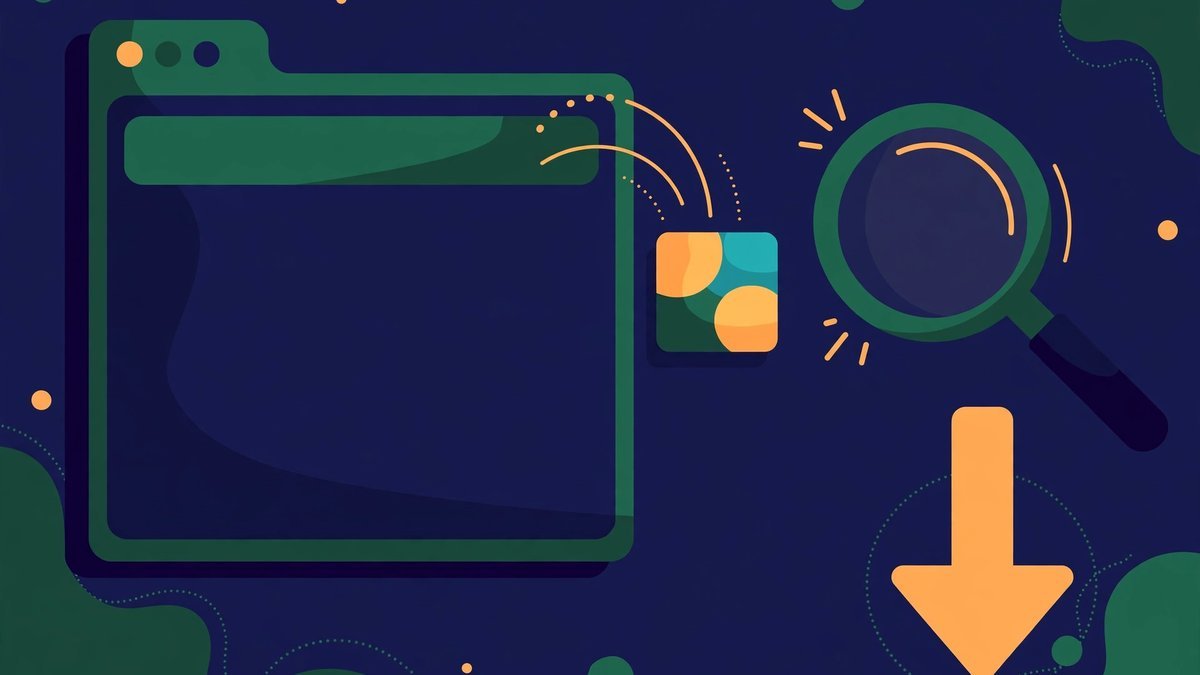
It helps to know where sites put these files. Most declare them in the <head> of every page with link tags, like this:
<link rel="icon" type="image/png" sizes="32x32" href="/favicon-32x32.png">
A site can declare several files at once — different sizes, different formats — and each browser or phone picks the one it wants; larger Android and PWA icons (192 and 512 pixels) are often listed in the site’s web app manifest instead. If a page declares nothing, browsers fall back on a convention from the web’s earliest days: they simply request /favicon.ico from the domain’s root. Plenty of sites still keep it there, often because their site builder put it there automatically.
The practical lesson: a grabber reads the same declarations your browser reads, plus that default path. There’s no hidden cupboard of bigger sizes — if a site’s largest published icon is 48 pixels, no tool can hand you a genuine 512.
Legitimate Reasons to Grab a Favicon
Design research and competitor checks. The fastest way to learn what survives at 16 pixels is to look at sites that do it well. Download the icons of the leaders in your niche, line them up at real tab size, and the pattern jumps out: one bold shape, two colours, nothing delicate. That homework feeds directly into designing your own — our favicon generator guide covers the rules that make an icon readable at tab size.
Recovering your own site’s icon. It happens more than people admit: the designer has moved on, the original files were on a laptop that died, or a theme change replaced your upload. The good news is your live site is still serving the favicon to every visitor. Grab your own domain, download the largest size on offer, and you’ve rescued the file. Then keep proper masters this time.
Auditing what your site actually serves. You changed your icon last month — but is the new one what visitors get? Themes, plugins and the WordPress Site Icon can each serve a different file, and browsers cache the old one stubbornly. Grabbing your own domain shows you the icon as the outside world receives it, not as your settings screen claims. If it turns out wrong or tired, rebuilding the full set takes minutes with a favicon generator.
Editorial and mock-up work. “Tools we use” round-ups, resource lists, presentations, pitch-deck mock-ups — showing a service’s real icon next to its name is standard editorial practice, no different in spirit from quoting its headline. On a working blog, this is the most common job of all.
Getting your own icon into ICO format. Sometimes the file you need is yours, in the one format a PNG set doesn’t cover. If you’ve designed your own mark, an icon maker turns any image, emoji or text into a real .ICO file, with a PNG pack alongside it for everywhere else.

Use It Legally: That Icon Belongs to Somebody
Plain talk, because this is the part people get wrong. A website’s favicon is its brand mark — usually its logo, often a registered trademark. Downloading it to study it, illustrate an article, build a mock-up, or recover your own file is normal, legitimate use; the file is published precisely so browsers can fetch it.
What isn’t fine is passing one off as your own. Uploading a recognisable brand’s icon as your site’s favicon, your app’s icon or your product’s logo misleads visitors into thinking you’re that business — or endorsed by it — and trademark law takes a dim view of exactly that. “I found it with a tool” is no defence, any more than it would be for their logo or their photos.
Two habits keep you on the right side of the line. First, treat grabbed icons as reference and editorial material only — the moment an icon needs to represent you, design your own. Second, if you want to use a big brand’s icon commercially (in an app, a template, a paid resource pack), check the brand’s press or brand-guidelines page; many publish official icon files under a licence — a better source than any grabber anyway.
How to Use the Favicon Grabber
Open the favicon grabber and you’ll find one box and one button — the whole job takes well under a minute.
- Paste the address any way you like. example.com, https://www.example.com/blog, www.example.com — the tool strips away the scheme, the www and the page path, and works with the domain itself.
- Click “Grab favicon” (or press Enter). Previews appear at seven sizes — 16, 32, 48, 64, 128, 180 and 256 pixels — each on a checkerboard background, so transparent edges stay visible instead of vanishing against white.
- Download the size you need. The Download button opens the full image so you can save it; Copy URL puts the direct link to the image on your clipboard instead — handy for dropping into a doc or mock-up.
- Check the two extra sources. Below the sizes sit the site’s own favicon.ico and DuckDuckGo’s copy. The site’s own file is sometimes sharper than the service copy, so try it before giving up on a soft preview.
- Read a letter tile correctly. If a card shows a plain initial instead of an icon, none of the three sources had the file. The site may genuinely not serve one.
Which Size Should You Download?
- 16–32 px — browser tabs, bookmark bars, and inline mentions beside a site’s name.
- 48–64 px — blog posts, resource lists and desktop shortcuts, where softness starts to show.
- 128–180 px — presentations and social graphics; 180 is also the Apple touch icon size.
- 256 px — design mock-ups and print, the largest standard request — worth it only when the site published something that holds up at that size.
One caveat pinned to all four: requesting 256 pixels doesn’t create them. Judge any grab at the size you’ll actually display it — a crisp 32 beats a mushy 256 every time.
Common Favicon Grabber Mistakes
- Using a grabbed icon as your own branding. The one real offence on this list. Study it, cite it, illustrate with it — then design your own.
- Assuming the biggest preview is the site’s real file. A soft 256-pixel image is a small icon scaled up by the service, not a large file the site published. Check the site’s own favicon.ico first.
- Grabbing the wrong domain. Subdomains and country domains can serve entirely different icons. Grab the exact domain your readers see, not a near miss.
- Expecting icons from private places. Intranets and staging sites behind a login — the public services this tool asks can’t see them either, so you’ll get the letter tile.
- Saving a screenshot of the preview. You’ll get a blurry picture of an icon instead of the icon. Use the Download button — the real file is one click further.
Frequently Asked Questions
Is it legal to download another website’s favicon?
Downloading one is fine — the file is publicly served so any browser can fetch it, and using it for study, research, mock-ups or editorial illustration is normal practice. The legal line is about use, not possession: a favicon is usually a trademarked logo, so presenting it as your own branding is passing off. Keep grabbed icons to reference and editorial work and you’ll stay clear of trouble.
Why does the 256 px version look blurry?
Because the tool can only return what the site published. If the site’s biggest icon is 16 or 32 pixels, Google’s service scales that small image up to the 256 you asked for, and scaling can’t invent detail. Try the site’s own favicon.ico card — occasionally a sharper original — but if the site never shipped a large icon, no genuine large version exists.
What does the plain letter tile mean?
It means all three sources came back empty, so the tool drew a simple placeholder with the domain’s first letter. It isn’t the site’s icon, and it doesn’t mean the website is broken either — some sites, especially minimal or older ones, serve no favicon at all.
Can I grab the favicon from a specific page or subdomain?
You can paste any address you like, but icons belong to domains, not pages: the tool reduces your address to its domain and fetches that domain’s icon. A subdomain counts as its own domain — blog.example.com can serve a different icon from example.com — while the www. prefix is simply stripped away.
What’s the difference between the Google copy and the site’s own favicon.ico?
The Google service copy is a PNG delivered at the exact size you requested, from Google’s stored copy of the icon — convenient, and available in all seven sizes. The site’s own favicon.ico is the original file on its server; an ICO can bundle several sizes inside one file, and it’s occasionally sharper or more up to date. DuckDuckGo’s service is a third copy to try.
Final Thoughts
A favicon tells you a lot about how a site thinks about itself, compressed into sixteen pixels: the confident ones are unmistakable, the neglected ones are a default letter or a smudge. Keep the favicon grabber in the research part of your workflow — study what the good sites do, audit what your own site serves, rescue your own file when you need to — and remember the real lesson: borrow the standard, not the artwork, and make a mark that’s yours.