


Social Media Image Resizer: How to Get Every Post, Story and Cover the Right Size
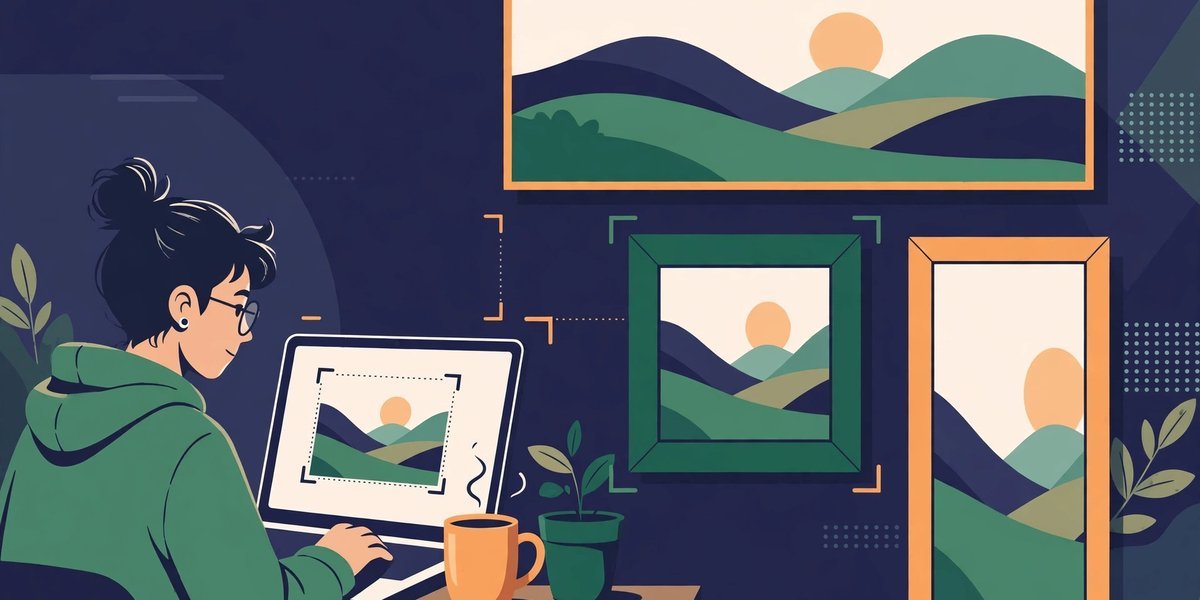
A social media image resizer takes a single picture and re-makes it at the exact pixel dimensions a platform displays: 1080 × 1350 for an Instagram portrait post, 1280 × 720 for a YouTube thumbnail, 1000 × 1500 for a Pinterest pin. It’s the same photo every time — just cut to a different shape deliberately, by you, instead of hurriedly, by an algorithm, at the moment you upload it.
That last bit is the whole point. Every platform shows images in fixed slots, and if your picture doesn’t match the slot, the platform makes the decision for you: a crop from the centre, a squeeze, a fresh round of compression. Sometimes the result is fine. Sometimes it’s your product’s price tag sliced in half. If you’ve got an image to sort out now, our free social media image resizer combines a size guide covering nine platforms — Instagram, Facebook, X, LinkedIn, YouTube, TikTok, Pinterest, Threads and Google Business — with a resizer that runs entirely in your browser, so your pictures never leave your device.
This guide covers the sizes that matter, the one choice that changes every result — crop or fit — and the quality rules that stop a resize quietly ruining a good picture.
Why the Wrong Size Costs You
Upload a photo in the wrong shape and three things can happen, none of them good.
First, the automatic crop. Platforms crop to their slot from the centre by default, which is rarely where the interesting part of your picture lives. Faces end up forehead-less, group shots lose the people at the edges, and the headline on your graphic gets trimmed to a mysterious fragment.
Second, compression. An oversized upload gets shrunk and re-compressed by the platform, whose priority is speed, not your image quality. Fine detail — fabric texture, small text, the grain in a food photo — is exactly what gets sacrificed.
Third, the stretch. Upload something too small and many slots simply display it bigger than it is, spreading the same pixels over more space. That’s the soft, slightly watery look you’ll have seen on profile covers and thumbnails. No setting fixes it afterwards; the detail was never there.
Getting the size right before you upload avoids all three. You choose the crop, you keep the quality, and the platform displays what you actually made.
Social Media Image Sizes at a Glance
These are the sizes you’ll reach for most often — posts, covers and the formats that carry most of a blog’s social traffic:
| Platform | Image type | Size (px) |
|---|---|---|
| Square post | 1080 × 1080 | |
| Portrait post | 1080 × 1350 | |
| Story / Reel | 1080 × 1920 | |
| Post | 1080 × 1350 | |
| Link share | 1200 × 630 | |
| Cover | 851 × 315 | |
| X (Twitter) | Post | 1600 × 900 |
| X (Twitter) | Header | 1500 × 500 |
| Post | 1200 × 1200 | |
| Link share | 1200 × 627 | |
| Standard pin | 1000 × 1500 | |
| YouTube | Thumbnail | 1280 × 720 |
| YouTube | Channel banner | 2560 × 1440 |
| TikTok | Video / photo post | 1080 × 1920 |
Two things worth knowing about any size chart, this one included. Platforms do change their specs — a cover size that was right for years can quietly shift, and display crops differ between phone and desktop. The YouTube banner is the famous case: only the centre “safe area” shows on every screen, so text and logos belong there. Treat these as the current, widely used recommendations, and for a big launch or client campaign, spot-check the platform’s own help pages before you batch-produce a month of graphics.
The resizer’s built-in guide has the full set — profile pictures, company page covers, Threads posts, Google Business photos and the rest — and every size has a button that loads it straight into the resizer, so there’s no typing dimensions from a chart and no transposed digits.
Crop to Fill or Fit Inside? The Choice That Changes Everything
Every resize to a different shape forces one question: what happens to the parts of your picture that don’t match the new rectangle? The tool offers the two honest answers, and choosing well matters more than the size itself.
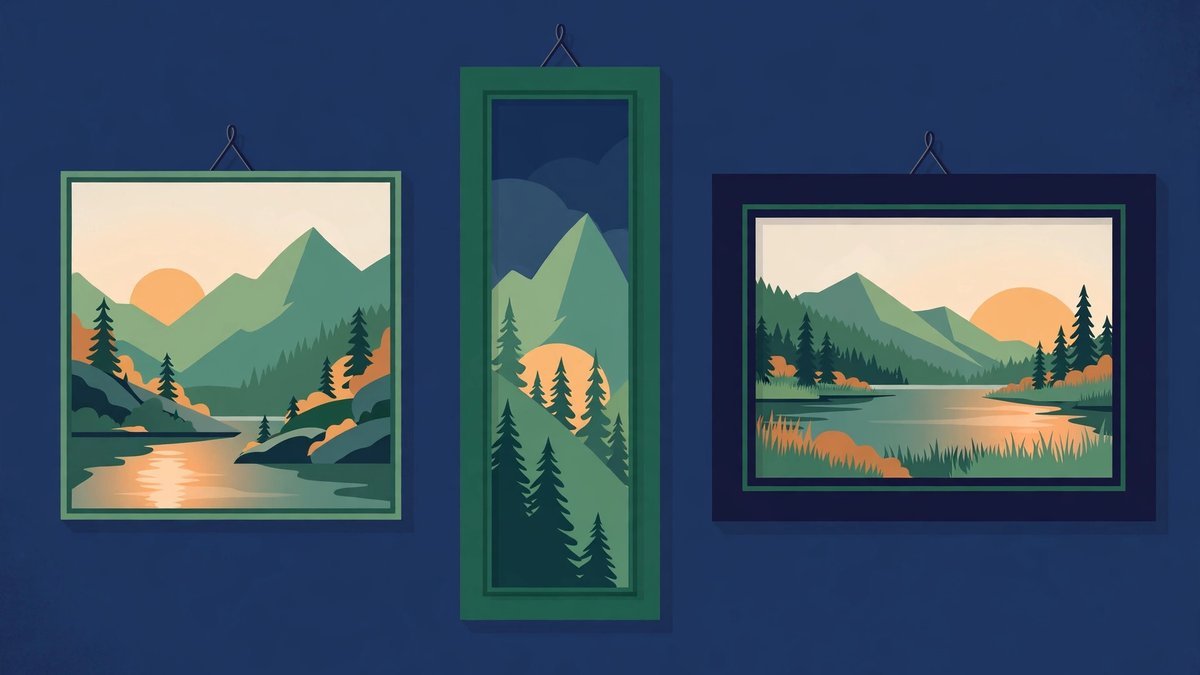
Crop to fill scales your image until it covers the whole frame, then trims whatever spills over the edges. Nothing is distorted and no space is wasted — this is what you want for posts, covers and thumbnails, where the platform’s slot will be filled by something and it may as well be your picture. The catch is the trimming: a centre crop can decapitate a portrait or amputate a product. That’s what the focal point sliders are for — drag them and you choose what stays in frame, instead of accepting the middle.
Fit inside shrinks the whole image until it fits within the frame, so nothing at all is cut off, and fills the leftover space with a background colour you pick. This is the right mode for logos, product shots on clean backgrounds, and any graphic with text or detail near the edges — the things cropping would destroy. Match the background colour to your design and the side bars look intentional rather than accidental.
A rough rule of thumb: if the image is a photograph, crop it. If it’s a graphic you designed, fit it.
How to Use the Social Media Image Resizer
Open the social media image resizer and you’ll find the size guide sits on the same page as the tool — find your platform, click “Resize to this”, and the dimensions are loaded for you.
- Add your image. Drag it onto the page or click to browse. JPG, PNG and WebP files are accepted, and the tool confirms the original’s dimensions and file size once loaded.
- Pick a size. Choose a preset from the guide or the dropdown, or type a custom width and height if you need something the presets don’t cover.
- Choose how it fits. Crop to fill, with the focal point sliders set on your subject — or fit inside, with a background colour chosen for the spare space.
- Check the preview. This is the moment to catch a cropped chin or a clipped logo. The preview shows exactly what will download, at the exact output size.
- Pick a format and download. JPG for photographs, PNG for graphics and text. The file arrives already named with its platform and dimensions, so the Instagram version never gets mixed up with the Facebook one.
Everything happens on your device. The image is processed in the browser and downloaded straight back to you — nothing is uploaded to a server, which is worth having when the photo is an unreleased product shot or a client’s artwork.
Resizing Is One of Three Jobs
Dimensions are only part of getting an image ready. Two companion jobs sit either side of the resize, and muddling them up causes most of the confusion.
Format comes first. The resizer accepts JPG, PNG and WebP. If your image is something else — an old GIF, or a file a designer sent that nothing wants to open — run it through an image converter to turn it into a JPG or PNG first, then resize the converted copy.
Weight comes last. Resizing a photo down does shrink the file, but a top-quality JPG at 1080 × 1350 can still be heavier than it needs to be. Our image compressor guide shows how to trim the kilobytes once the dimensions are set, without undoing the sizing work you’ve just done.
And if the JPG-or-PNG choice at download time has you hesitating, our image converter guide explains which format suits photos, screenshots and logos — and why WebP has quietly become the web’s default.
Three Quality Rules Worth Keeping
Start from the biggest original you have. Every resize is a one-way trip down in information. Working from the full-size camera file means every platform version is made from the best source; working from last month’s already-shrunk Instagram version means every copy is a copy of a copy.
Never stretch a small image up to a big slot. Enlarging doesn’t invent detail — it spreads the existing pixels thinner, and the result looks soft whatever tool you use. The resizer is blunt about this: ask for an output much larger than your original and it warns you before you download. Find a bigger original, or choose a smaller format.
Check the crop like it matters, because it does. The preview takes two seconds to read properly. Faces whole? Wording complete? Logo nowhere near an edge? Cropping mistakes are the most common social image error and the cheapest to prevent — they’re only expensive once the post is live and already shared.
Common Social Media Image Mistakes
- Uploading one size everywhere. A 1080 × 1080 square posted to every platform guarantees at least three of them crop it badly.
- Designing text right up to the edges. Platform crops and profile-picture overlays eat margins. Keep words and logos in the middle ground.
- Resizing a resized image. Making the LinkedIn version from the Facebook version, instead of from the master file, compounds the quality loss.
- Ignoring the banner safe area. A YouTube banner that looks perfect on a TV can hide its own headline on a phone.
- Stretching a small logo up to cover size. It will look blurry everywhere, and it’s the first thing visitors see.
- Skipping the preview. Two seconds of checking beats deleting and reposting.
Frequently Asked Questions
What is the best image size for social media?
There isn’t one — each platform and placement has its own, which is precisely why resizers exist. The sizes in the table above cover the formats a blogger uses most: 1080 × 1350 for Instagram portrait posts, 1200 × 630 for Facebook link shares, 1600 × 900 for X posts, 1000 × 1500 for Pinterest pins and 1280 × 720 for YouTube thumbnails.
Why does my image look blurry after I upload it?
Usually one of two reasons: the image was smaller than the slot and got stretched to fill it, or far larger than needed and re-compressed aggressively by the platform on the way in. Uploading at the exact recommended size, from your largest original, avoids both.
Can I resize a small image bigger without losing quality?
No. Enlarging spreads the pixels you already have over a larger area; it can’t add detail that was never captured. Any tool that promises otherwise is promising the impossible. Use a bigger original, or pick a smaller placement.
Should I crop to fill or fit inside?
Crop to fill for photographs, posts, covers and thumbnails — anywhere the frame must be completely filled. Fit inside for logos, product shots and graphics with text or detail near the edges, where cutting anything off would do real damage. If in doubt, preview both — the right answer is usually obvious.
Is it safe to resize images with an online tool?
It depends where the work happens. This resizer runs entirely in your browser, so images stay on your device and are never uploaded. With any tool, check whether it processes files locally or asks for uploads first — for unreleased or client work, local is safer.
Final Thoughts
Social images fail quietly. Nobody messages you to say your cover cropped your headline in half — they just scroll past a post that looks slightly wrong. The fix is a thirty-second habit: one master image, resized deliberately for each platform, checked in the preview before it goes anywhere.
Keep the social media image resizer in that routine and the platforms will show your pictures the way you made them — right shape, right crop, no surprises.