




Team Management System: How to Run a Small Blog Team Without the Chaos

A team management system puts three things in one place — your people, their tasks and the conversation about the work — so you can see who is doing what and what is finished, without digging through weeks of message threads. Click Hype’s free team management system is a deliberately lightweight version of that idea: a team list with roles, a three-column task board with priorities and deadlines, a simple group chat, and a stats strip showing how much of the work is done. It runs entirely in your browser and takes about two minutes to set up — a sensible first step for a small blog team that has outgrown memory and good intentions.
It suits a blogger coordinating a handful of people — writers, an editor, an SEO helper, a designer — particularly when the organising happens from one computer. It is not a heavyweight project platform; there’s an honest section further down on its limits.
Why a Growing Blog Stops Being a One-Person Job
At the start, a blog is one person wearing every hat: you write the posts, edit them and make the images. That works — right up until it doesn’t. Traffic grows, income grows, and the weekly job list grows faster than your evenings.
So you bring people in: a freelance writer for two posts a week, an editor, someone for the SEO tasks you keep postponing, a designer for featured images and pins. And almost immediately a new problem appears: the work starts living in scattered places. The brief is in an email. The draft is in a shared document. The deadline was mentioned in a chat thread three days ago.
Two people draft the same post because nobody knew it was taken. A deadline slips because it only ever existed inside a conversation. Nobody can answer the simplest question — who has what, and where is it up to? — without ten minutes of scrolling. The fix isn’t more messages. It’s one shared place where the state of the work lives.
What a Team Management System Actually Has to Do
Strip away the enterprise features that vendors love to demo — Gantt charts, time tracking, invoicing, automations — and four core jobs remain. A tool that does these four well can run a small team; everything else is garnish.
- A member directory with roles. Who is on the team and what each person does — writer, editor, SEO, designer — so work goes to the right human instead of everyone.
- Task assignment with owners, statuses and deadlines. Every job as a card with one person’s name on it, a status (not started, in progress, done) and, where it matters, a due date. A task with no owner is a wish, not a task.
- One place for team conversation. Updates next to the work itself, not spread across three apps and an inbox, so context stops getting lost.
- A dashboard view of what’s outstanding. How many tasks exist, how many are done, what is overdue — so a bottleneck gets spotted before it becomes a missed week.
Inside Click Hype’s Team Management System
Our tool opens with a small demo team already in place — five members, a few tasks, a couple of chat messages — so you can click around before adding anyone real.
The left panel is the team. Adding a member is a name plus a role: Manager, Writer, SEO, Designer, Editor or Developer, or a custom role of your own. Each person gets a coloured initials avatar, an online/offline toggle, and a live count of their open tasks — so you can see who is loaded up and who has room. Remove someone and their tasks become Unassigned rather than vanishing.
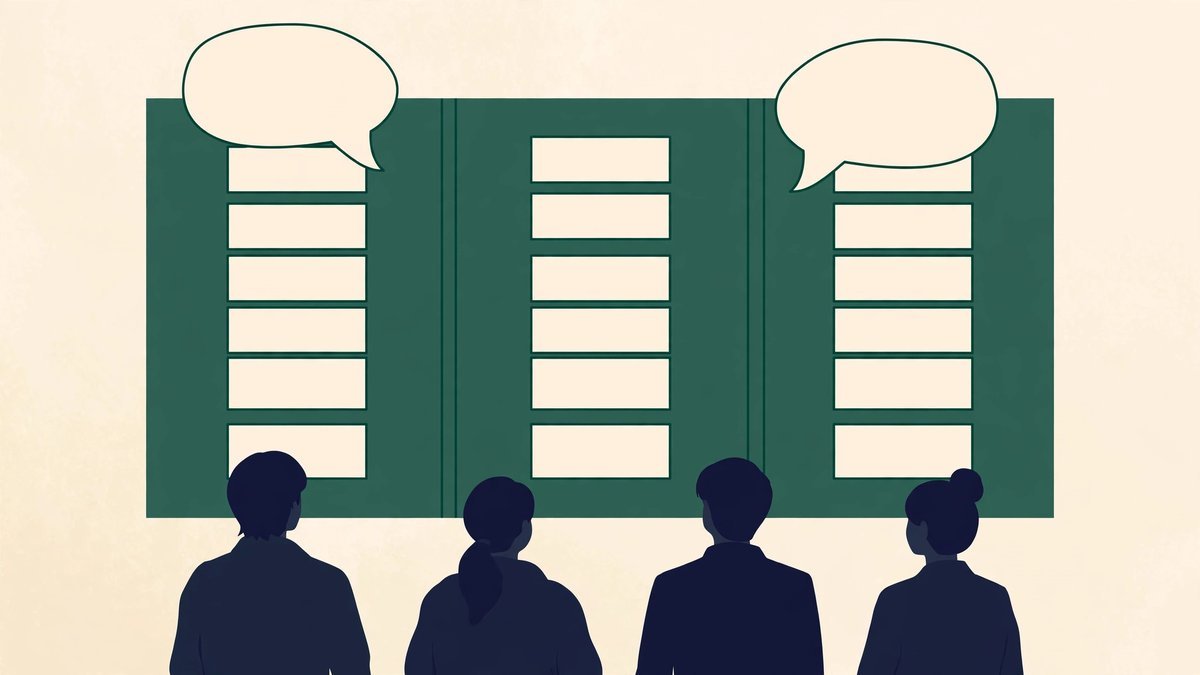
The centre is the work. A stats strip runs across the top: total tasks, To Do, In Progress, Done, and a completion percentage with a progress bar. Below it, the task form takes a title, optional details, an assignee, a priority (Low, Medium or High), an optional due date and a starting status. Tasks appear as cards on a three-column board, each showing its priority badge, due date and owner. If a due date passes unfinished, the card flags itself Overdue in red — no meeting required. Arrow buttons move cards between columns; tasks can also be edited, deleted, filtered by member or priority, and searched.
On the right is the group chat. An “acting as” selector at the top of the team panel chooses whose name you’re posting under — handy when one person keeps the board updated for everyone. The chat also posts automatic notes when things happen on the board: a task created, assigned, marked Done or moved back.
A Week With a Small Content Team: A Walkthrough
Monday morning. You add four people to the team panel — yourself as Manager, your writer, your editor and your designer — then build the week’s board.
The first card is the big one: “Draft the keyword cannibalisation follow-up post”, assigned to the writer, High priority, due Thursday. In the details go the brief: the keyword, the posts it must link to, and a target of around 1,800 words. Setting that target in writing matters, because the writer checks the finished draft in the word counter before handing it over — so word count is settled by the tool, not argued about in chat.
The second card goes to you (or your SEO helper): an internal-linking pass over last month’s articles, following the method set out in our internal linking strategy for blogs. It’s the sort of job that quietly never happens unless it exists as a card with a name and a Friday deadline on it.
A third card gives the designer the images for Thursday’s post, due Wednesday so artwork never holds up publishing. By midweek the board tells the week’s story without a single status meeting: the draft is In Progress, the images are Done, and the chat holds a note from the writer — posted under her name via the acting-as selector — saying the draft is with the editor. Thursday, the post card moves to Done. Friday’s glance shows one card flagged Overdue in red: yours, the internal-linking pass. Fair enough — the system made the dropped ball visible while there’s still time to pick it up.

How to Use the Team Management System
Open the team management system and spend two minutes with the demo data first — move a card, post a chat message, toggle a member offline. Once the layout feels familiar, set up your own team.
- Add your members. Name and role for each person — a preset role, or a custom one. “Pinterest Manager” is a perfectly real job on a blog team.
- Choose who you’re acting as. The selector at the top of the team panel sets whose name appears on your chat messages.
- Create the week’s tasks. Title, a few lines of detail (brief, links, targets), an assignee, a priority and a due date where one exists. One owner per task — never two, never “the team”.
- Work the board. Move cards from To Do to In Progress to Done with the arrow buttons as work actually moves. Edit a card if the brief changes; delete it if the job is cancelled.
- Filter when the board gets busy. Show one member’s tasks to plan their week, filter by High priority, or search titles and details.
- Keep updates in the chat. Short notes beside the work — “draft ready”, “images uploaded” — where everyone coordinating can see them.
- Glance at the stats, not your inbox. Totals, in progress, done, completion percentage: your Monday and Friday check-in, done in five seconds.
The Honest Limits: What This Tool Isn’t
Now the part most tool pages skip. This system stores everything — members, tasks, chat — in your browser’s local storage, on the one device you’re using. The page says so itself: team data never leaves your device. That’s a genuine privacy plus, but it has real consequences worth understanding.
- There are no accounts or logins. The acting-as selector simply changes whose name chat messages carry on that screen. Anyone with the browser open can switch identity, so this is a trust-based organiser, not a secure workspace.
- Nothing syncs. Open the tool on your phone and you’ll find a separate workspace (with the demo data), not your laptop’s board. Teammates can’t each log in from home to the same live board — that requires a server, and this tool deliberately doesn’t have one.
- The chat is local. Messages exist only in that browser. It works well as a shared log when the organising happens on one machine, or while screen-sharing — but it is not messaging between team members’ own devices.
- Your data is only as safe as your browser. Clearing the browser’s site data, or pressing Reset demo data, wipes your workspace for good. There’s no cloud backup.
So who is it honestly for? A small team coordinated from one computer; a solo blogger planning the week as if the team already exists; or anyone testing whether a board-and-chat habit sticks before paying for a full platform. If your team is larger, fully remote, and needs each person on their own live view, you need a proper multi-user system instead.
Common Team Management Mistakes
- Adopting a heavyweight system for a three-person team. The enterprise platform takes a weekend to set up, nobody updates it because updating it is a chore, and the board is abandoned by the second Friday. The best system is the lightest one your team will actually keep current.
- Letting tasks live in three places at once. A job mentioned in chat, half-written in an email and also on the board exists in three versions, two of them wrong. Pick one home for tasks — the board.
- Tasks without owners or deadlines. “Someone should check the links” belongs to nobody, so it happens never — every card gets exactly one name. And everything due “sometime” and marked High priority gives no signal at all: save High for the genuinely urgent few.
Frequently Asked Questions
Is the team management system free to use?
Yes, completely. There’s no account to create, no trial period and no paid tier. It runs in your browser, and everything is saved on your device as you work.
Where is my team’s data stored?
In your browser’s local storage, on the device you set it up on. Nothing is uploaded anywhere — which is why the same workspace doesn’t appear on a different device or browser.
Can my team use it from different computers or phones?
Not as one shared workspace, no — better to know that up front. Each browser keeps its own separate copy, with no syncing between them. A team that needs everyone on their own live, synced view needs a multi-user platform.
Does it send reminders or notifications?
No emails, push notifications or pings — the tool has no server to send them from. Instead, overdue tasks are flagged in red on the board itself, so a missed deadline is obvious the moment anyone looks.
How big a team is it right for?
A handful of people: the blogger plus a few writers, an editor, an SEO helper, a designer. That’s the size where memory and chat threads start failing but enterprise software is still overkill — the gap this lightweight system was built to fill.
Final Thoughts
The jump from solo blogger to small team doesn’t require enterprise software or another monthly subscription. It requires one honest place where people, tasks and conversation live together, kept current because keeping it current takes seconds. Put your real team into the team management system, load this week’s work onto the board, and let the stats strip — not a scroll through three chat apps — tell you where things stand. And when you outgrow it, you’ll know exactly which features your team actually uses.