


How to Fix Crawl Errors and Indexing Problems on Your Blog

You publish a post you are proud of, wait a week, then search Google for its title — and nothing comes up. The post exists, but Google does not seem to know it is there. That is almost always a crawl error or an indexing problem — and nearly every case has a clear cause and a clear fix. Google Search Console tells you exactly what is wrong, if you know how to read it.
Crawl Errors vs Indexing Problems: What Is the Difference?
Crawling is Google visiting your site. A crawl error means that visit failed — the server did not answer, the page returned an error, or a file told Googlebot to stay away. Indexing is what happens after a successful crawl: Google decides whether the page is worth keeping in its index. An indexing problem means Google visited your page but chose not to list it. In short: Google cannot reach it, crawl error; Google can reach it but will not list it, indexing problem. Not every unindexed page is a problem, though — Google’s own documentation says it is fine for many URLs to stay out of the index. What matters is that the canonical version of every important page is indexed.
Step 1: Find the Errors in Google Search Console
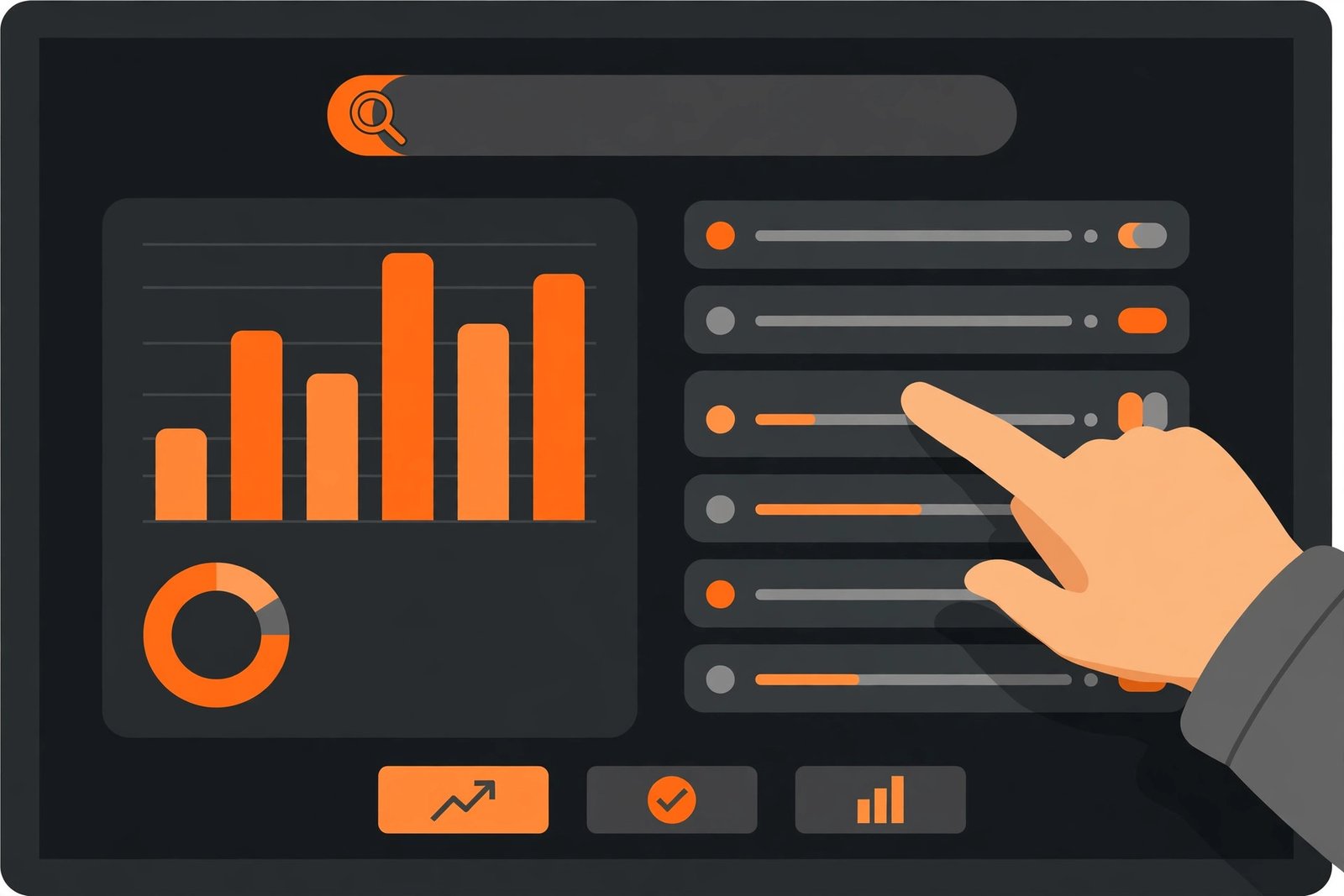
Everything starts in Search Console, in the Page indexing report. If you have not set it up yet, do that first — it is free, and our Google Search Console guide for bloggers walks through the setup. Go to Indexing → Pages: you will see how many pages are indexed and how many are not, then the reasons grouped by type, with a count beside each one. Click a reason to see the example URLs. That reason row is the most important thing on the screen. For a single page, use the URL Inspection tool to see when it was last crawled, whether it is indexed, and which version Google considers canonical.
Step 2: Fix in the Right Order
Fix in this order: manual actions and security issues first — they can pull your whole site out of Google. Then server errors and accidental blocks (5xx errors, robots.txt blocks, stray noindex tags), because nothing else can be judged until Google can reach your pages. Then indexing problems on pages that earn you money or traffic, then sitemap errors, then everything else.
Server Errors (5xx) and DNS Problems
A server error means Google asked for a page and your server failed to answer. These are the most urgent crawl errors, because they can affect your whole site at once. The usual causes are an overloaded server, a crashing plugin, a hosting plan that cannot cope with a traffic spike, or a security plugin blocking Googlebot by mistake. Check your hosting error log for the dates Google reports — it will usually name the culprit. If errors cluster around busy times, caching and stronger hosting matter more than any SEO tweak — our WordPress technical SEO checklist covers the basics. DNS errors are rarer but more serious: Google could not even find your server, usually after a domain move or DNS change.
Blocked by robots.txt
“Blocked by robots.txt” means a line in your robots.txt file tells Google not to crawl that path. Sometimes that is deliberate. Sometimes it is an accident — the classic one is a plugin or theme update adding a broad Disallow rule that catches real posts. Open yourdomain.com/robots.txt and read it. On WordPress, Disallow: /wp-admin/ is normal, but Disallow: / blocks your entire site — remove it immediately if you see it. Also check it is not blocking the CSS and JavaScript your pages need — without those, Google cannot render the page properly. If you need a clean file, our robots.txt generator writes one with sensible defaults — see the robots.txt generator guide for what each line does.
Redirect Errors, Loops and Long Chains
A redirect error means Google followed a redirect and got stuck — it looped, chained through too many hops, or pointed at a dead URL. Google gives up after a few hops, and the page at the end never gets crawled. The fix: every old URL should point in one hop to its final live page. Map your redirects out and shorten every chain — A to B to C should become A straight to C. This usually appears after a redesign, a permalink change, or a round of “quick” fixes that stacked up. If you recently changed your URL structure, read our guide to blog post URL structure first.
404s, Soft 404s and Pages That Should Not Exist
A 404 means the page is gone. If the content moved, add a single 301 redirect to the closest equivalent page — not to your homepage, which Google treats as a soft 404 in disguise. If the content is gone for good, a 404 is the correct answer, and a 410 (“gone permanently”) is even clearer. Either way, remove the dead links pointing at it. A soft 404 is sneakier: the page returns “200 OK”, so it looks alive, but Google decides it has no real content. The fix is a decision: give the page genuine content again, or let it return a real 404 or 410 and stop asking Google to index it.
The Accidental Noindex
A noindex tag tells Google to leave a page out of the index, and it is the most embarrassing cause of an indexing problem because it is usually self-inflicted: a page set to “noindex” in your SEO plugin, a staging setting carried over, or WordPress’s “Discourage search engines” checkbox left ticked after launch. In WordPress, check Settings → Reading first: if “Discourage search engines from indexing this site” is ticked, untick it. Then check the page itself in your SEO plugin — Rank Math and Yoast both let you set individual pages to noindex. Here is the catch: a noindexed page will not be indexed even if it is in your sitemap — the tag beats the sitemap. Remove the tag first, then request indexing.
Duplicate Pages and Canonical Problems
Those two reasons are the same story: Google found two or more pages with near-identical content and had to pick one to index. If it picked the right one, the error is mostly cosmetic — but add a canonical tag naming your preferred page, so the choice is yours. If Google picked the wrong one, make the signals agree: put one canonical tag on both pages, naming the same absolute URL, and point your internal links at the canonical version. Real duplicates usually come from tag and category archives, URL parameters, and posts covering the same topic twice. Two posts on the same keyword competing with each other is called keyword cannibalisation, and our guide to fixing keyword cannibalisation shows how to merge or separate them.
Crawled or Discovered — But Not Indexed
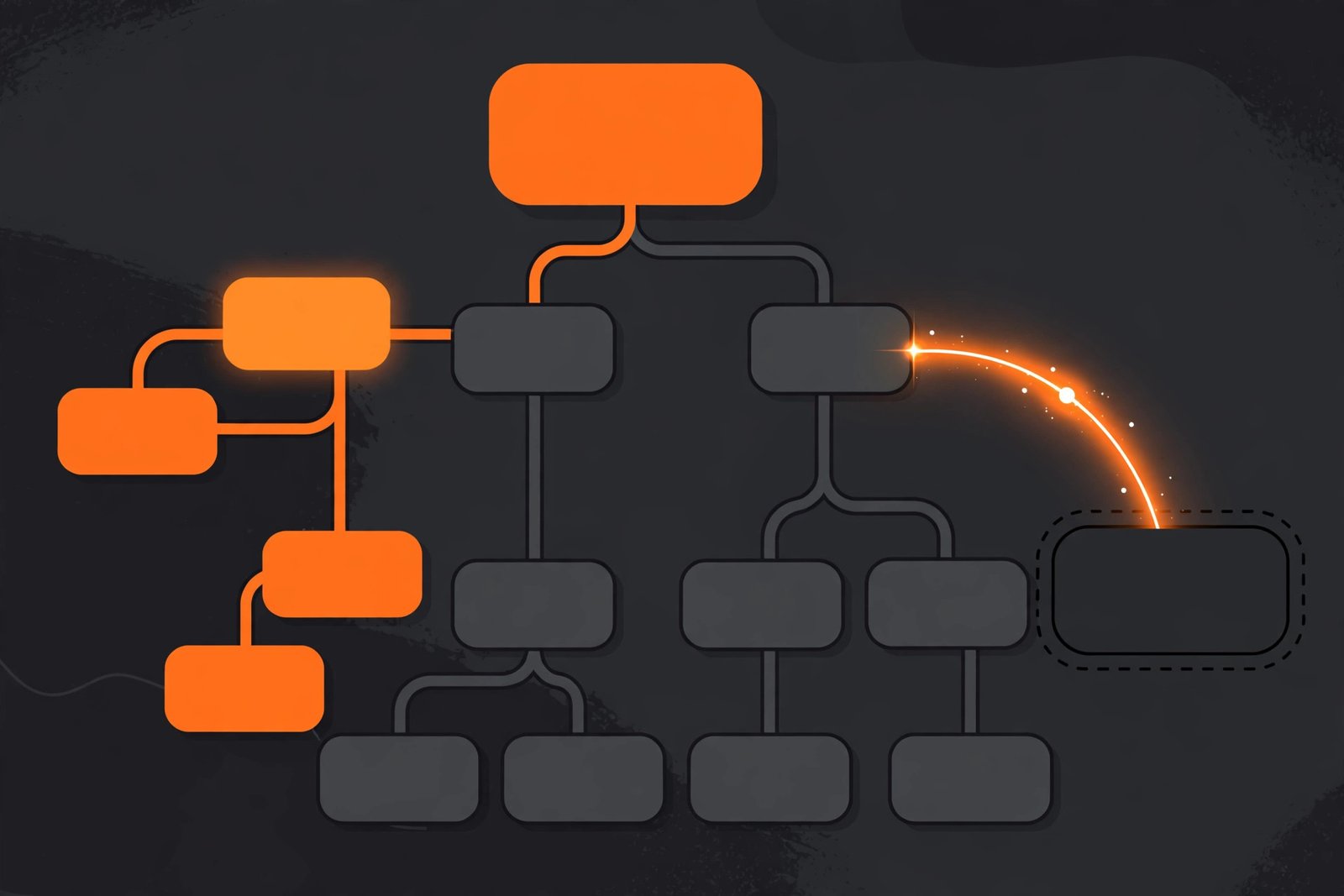
This is the reason most bloggers stare at longest. “Crawled — currently not indexed” means Google visited your page, read it, and decided not to keep it — usually because the content is thin, too similar to another page, or not useful enough. There is no technical fix: the fix is editorial, and it is a decision per page. Improve it with original detail, examples, or screenshots no other page has; merge it into a stronger post on the same topic and redirect the weak URL to it; or let it go — some pages simply do not need to be indexed. Change the page first, then request indexing once — Google has already seen it and passed. “Discovered — currently not indexed” is the other side of the coin: Google knows the URL exists but has not crawled it yet. On a small blog that usually means the page is an orphan with no internal links, or the sitemap is out of date. Link to the new post from an older, indexed post on the same topic, ideally within the body text. A quick blog SEO audit will surface your orphan pages in one pass.
Step 3: Validate the Fix — and Be Patient
Once you have fixed a problem, go back to the report, open the reason, and click Validate fix. Validation usually takes up to about two weeks, and it stops the moment Google finds a single remaining instance — so fix every affected URL first, not just the first example. Requesting indexing asks Google to crawl a page sooner, but it is a request, not a command. New posts on a small blog can take days or even a couple of weeks to appear, and that is normal — but a post still unindexed after a month with no error shown is not. Do not validate the same error repeatedly in one week, either. Fix it properly once, validate once, and move on.
A Monthly Routine That Keeps Errors Away
Crawl errors are not a one-time fix — new ones appear every time you publish, delete, redesign, or update a plugin. A short monthly routine keeps them from piling up: on the first Monday of the month, open the Page indexing report and note any new reasons or rising counts. Fix server errors and blocks first, then indexing problems on important pages. Check your newest posts in the URL Inspection tool — are they indexed within two weeks of publishing? Sweep for dead links after any delete or merge. And glance at your sitemap after bulk changes.
Frequently Asked Questions
How long does it take Google to index a blog post?
Usually a few days to two weeks for a small blog, longer if the site is new or rarely crawled. If a post is still not indexed after a month, check the Page indexing report — there is almost always a specific cause.
Why is my blog post crawled but not indexed?
Google visited the page and decided not to keep it — usually because the content is thin, too similar to another page on your site, or has no internal links pointing to it. Improve the content, merge it into a stronger post, or link to it from an indexed page, then request indexing once.
What is the difference between a crawl error and an indexing error?
A crawl error means Google could not reach or fetch the page — a server error, a 404, a robots.txt block, or a broken redirect. An indexing error means Google reached the page but chose not to list it, or was told not to by a noindex tag or a canonical. Fix crawl errors first.
Should I fix every “Not indexed” URL in Search Console?
No. Many unindexed URLs are meant to be unindexed — redirects, duplicates, tag archives, pages you deliberately blocked. Fix the ones that affect pages you want in search results and leave the rest alone.
How do I get Google to recrawl my blog faster?
Publish regularly, link new posts from older indexed posts, keep your sitemap clean, and make sure your pages load quickly. You can also request indexing for individual URLs in the URL Inspection tool — but crawl speed follows site quality and consistency, and no button makes Google visit a neglected site every day.
Final Word
Crawl errors and indexing problems feel technical, but they are mostly a reading exercise. Search Console tells you the reason, the reason tells you the kind of problem, and each kind has a fix you can do on your own site. Work in order — server and blocks first, important pages next — validate each fix once. Thirty minutes a month, a clean sitemap, honest redirects, and pages worth indexing: that is the whole system. Start with your most important unindexed post today.