



WordPress Technical SEO Checklist for Bloggers (Speed, Sitemap, Schema)

You can write a brilliant post and still struggle to rank if Google cannot crawl it properly, load it quickly or understand what it is about. Those behind-the-scenes problems are technical SEO — and on WordPress, most can be fixed in an afternoon, without a developer.
This checklist covers the checks that matter most for a blog: crawling and indexing, speed, HTTPS, schema, duplicate content, mobile usability and images.
What Is Technical SEO (and How Is It Different from On-Page SEO)?
On-page SEO is everything you do inside a post: keywords, headings, meta titles, internal links and content quality. Technical SEO is everything underneath the post: how your site is built, how fast it loads, and how easily search engines can find, read and index your pages.
Think of it this way: on-page SEO is the article itself, technical SEO is the printing press. A great article on a broken press still reaches nobody. If you already follow an on-page routine, this checklist is the next step — the site-level foundations those posts depend on.
1. Crawling and Indexing: Help Google Find the Right Pages
Google can only rank pages it can find and index. Start here.
Check Your robots.txt File
Your robots.txt file tells crawlers which parts of your site to avoid. For most blogs it should be short: block the admin area, and point to your sitemap. Visit yourdomain.com/robots.txt and check:
- ☐ It does not accidentally block your whole site (
Disallow: /with nothing after it) - ☐ It does not block CSS, JavaScript or image folders, which Google needs to render pages
- ☐ It includes a
Sitemap:line with your full sitemap URL
Check Your XML Sitemap
Your sitemap is the map you hand to Google. Rank Math or Yoast generates it for you, usually at yourdomain.com/sitemap.xml. Open it and confirm:
- ☐ Your posts, pages and categories are listed, with recent update dates
- ☐ All URLs use https://, not http:// — mixed versions confuse crawlers and split signals
- ☐ No demo, placeholder or test pages appear (many premium themes install sample team, portfolio or shop pages that should never be indexed)
- ☐ No tag archives, author archives or attachment pages are flooding the list, if you have those set to noindex
Then submit the sitemap in Google Search Console under Indexing > Sitemaps, if you have not already.
Noindex Thin and Demo Pages
Not every page deserves to be in Google. Thin pages — a two-line About page, an empty category, a theme demo page — dilute your site’s quality.
Audit indexed pages in Search Console under Indexing > Pages. For anything thin or irrelevant, either improve it properly or set it to noindex in your SEO plugin and remove it from the sitemap. A smaller, stronger sitemap beats a bloated one.
2. Site Speed and Core Web Vitals
Slow blogs lose readers and rankings. Google measures real-user speed through Core Web Vitals:
- LCP (Largest Contentful Paint): how fast the main content appears — aim for under 2.5 seconds
- INP (Interaction to Next Paint): how quickly the page responds to a tap or click — aim for under 200ms
- CLS (Cumulative Layout Shift): how much the page jumps around while loading — aim for under 0.1

Test your homepage and one popular post in Google PageSpeed Insights. Then fix the usual WordPress culprits:
- ☐ Theme bloat and preloaders: loading screens and animation-heavy themes delay content. If your theme shows a preloader on every page, disable it
- ☐ Too many plugins: deactivate anything you do not actively use, especially sliders, popups and social widgets
- ☐ No caching: install one caching plugin and enable page and browser caching
- ☐ Unoptimised images: the number one cause of slow LCP on blogs — see below
- ☐ Weak hosting: if a cleaned-up site is still slow, the hosting plan is usually the limit
3. HTTPS and Mixed Content
Your whole site — every page, post and image — should load over HTTPS. Browsers label non-HTTPS pages “Not Secure”, and Google uses HTTPS as a ranking signal.
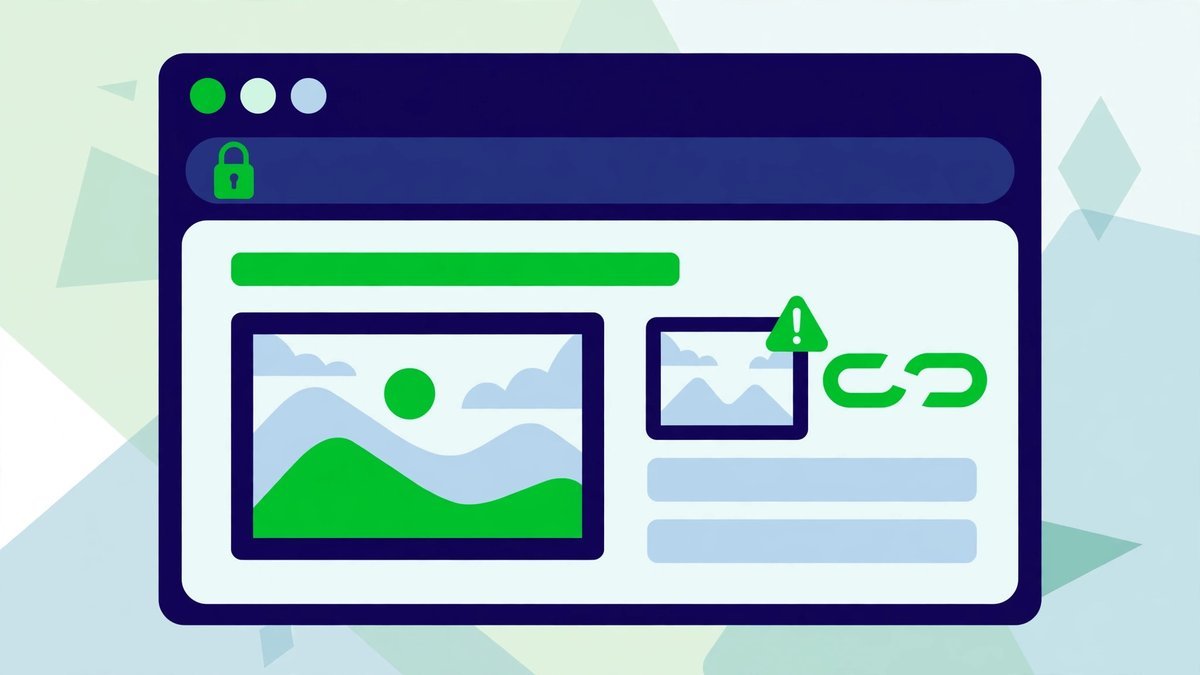
Watch for mixed content: an HTTPS page loading some resources, usually images, over plain HTTP. It is common on older migrated sites, and can even appear inside your sitemap’s image URLs. Quick fixes:
- ☐ Confirm your SSL certificate is active and auto-renews
- ☐ Force HTTPS redirects in your SEO plugin or hosting panel, so the http version always forwards to https
- ☐ Run a free mixed-content scan (your hosting panel or a browser’s developer console will flag insecure images)
- ☐ Update old internal links and image URLs so nothing points to the http version
After fixing it, re-check your sitemap: every URL, including images, should start with https://.
4. Schema Markup with Rank Math or Yoast
Schema is structured data that explains your page to Google in a language it cannot misread: this is an article, this person wrote it, this is an FAQ. Good schema helps you win rich results and helps AI search features understand your content. You do not need code for it — Rank Math and Yoast add the core schema automatically. Check:
- ☐ Article schema is enabled for posts, with author, date published and date modified filled in
- ☐ Your author profile is complete — schema is only as trustworthy as the author information behind it
- ☐ Breadcrumbs are enabled and shown on posts, so Google understands your site structure
- ☐ Add FAQ schema only to genuine question-and-answer sections (Rank Math and Yoast both offer an FAQ block), and HowTo schema only to true step-by-step guides
- ☐ Test one post in Google’s Rich Results Test to confirm the schema is valid, with no errors
Do not add schema that does not match the visible content — fake reviews or hidden FAQs can earn a manual penalty.
5. Duplicate Content and Canonicals
WordPress quietly creates duplicates: the same post reachable through category, tag and author archives, and sometimes http and https versions. Google then has to guess which is the “real” one, and your ranking signals get split.
A canonical tag removes the guesswork: it tells Google which URL is the original. Rank Math and Yoast add self-referencing canonicals automatically, but verify:
- ☐ Each post’s source shows one canonical tag pointing to its own correct https URL
- ☐ Tag and author archives are either genuinely useful or noindexed — not indexed and empty
- ☐ Parameter URLs (?utm=, ?share=) are not being indexed as separate pages — check Search Console’s Pages report; a few canonical warnings are normal, hundreds are a problem
- ☐ If you republish posts elsewhere, the copy points its canonical back to your original
6. Mobile Usability
Most blog traffic is mobile, and Google indexes the mobile version first. A post that looks perfect on a laptop can be unreadable on a phone. Open your site on your phone and check:
- ☐ Text is readable without pinching or zooming, and paragraphs are short
- ☐ Buttons and links are easy to tap without hitting the wrong one
- ☐ Nothing overflows sideways, and tables or wide images shrink to fit the screen
- ☐ Popups and cookie notices do not cover the content or take long to dismiss
- ☐ The menu works, and the search box is easy to find
Then check Search Console’s Core Web Vitals report on mobile specifically — mobile scores are almost always worse than desktop, and they are the ones that count.
7. Image Optimisation
Images are usually the heaviest part of a blog page, and the most neglected. Fix them and you fix speed, accessibility and image search traffic in one go.

- ☐ Compress before or during upload: use an image optimisation plugin to convert to WebP and strip unnecessary data, aiming for under 100–150KB for most in-post images
- ☐ Resize to the size you display: do not upload a 4000-pixel photo into a 800-pixel content column
- ☐ Write descriptive file names:
wordpress-technical-seo-checklist.png, notIMG_2041.png - ☐ Write real alt text: one short sentence describing the image for screen readers and Google — not the post title repeated, and not a list of keywords
- ☐ Lazy-load below-the-fold images: WordPress does this by default, but confirm your theme has not disabled it
Frequently Asked Questions
What is technical SEO, and how is it different from on-page SEO?
On-page SEO is everything inside a post: keywords, headings, meta titles, internal links and content quality. Technical SEO is everything underneath it: how your site is built, how fast it loads, and how easily search engines can find, read and index your pages.
What are the Core Web Vitals targets for a blog?
Largest Contentful Paint under 2.5 seconds, Interaction to Next Paint under 200 milliseconds, and Cumulative Layout Shift under 0.1. Test your homepage and one popular post in PageSpeed Insights, and check the mobile report specifically — mobile scores are almost always worse, and they count most.
How often should I run the technical SEO checklist?
Run the full checklist once, today. After that: monthly, check Search Console’s Pages and Core Web Vitals reports; quarterly, re-check the sitemap, test speed on your top five posts, and review plugins; and run the whole list again after changing theme, hosting or SEO plugin, when sitemaps and canonicals quietly break.
How Often Should You Run This Checklist?
Run the full checklist once — today. After that:
- Monthly: check Search Console’s Pages and Core Web Vitals reports for new errors
- Quarterly: re-check your sitemap for thin pages, test speed on your top five posts, review your plugins
- After changing theme, hosting or SEO plugin: run the whole list again — that is when sitemaps and canonicals quietly break
Technical SEO is not glamorous, but it is the foundation everything else sits on. Fix the press first, and every post you publish works harder for you.