





Icon Maker: How to Turn an Image, Emoji or Your Initials into a Real ICO File

An ICO file bundles several sizes of the same picture — from a tiny 16-pixel version up to a crisp 256-pixel one — so a browser, Windows or a shortcut can pick the size it needs. For a blogger, the one you’ll meet most is favicon.ico — the small icon in a browser tab and beside your site name in search results. Our free icon maker builds a genuine multi-size ICO in your browser from your own image, an emoji or one or two letters, plus a full PNG pack for your website — all on your own device, with nothing uploaded.
You might want one for more than a favicon: a recognisable desktop shortcut to your blog, a folder icon for your post drafts, or an app-style icon for a download you share with readers. This guide explains what lives inside a proper ICO, the three ways to build one, and the rules that stop a good idea turning into a 16-pixel smudge.
What Is an ICO File, and Why Does One File Hold So Many Sizes?
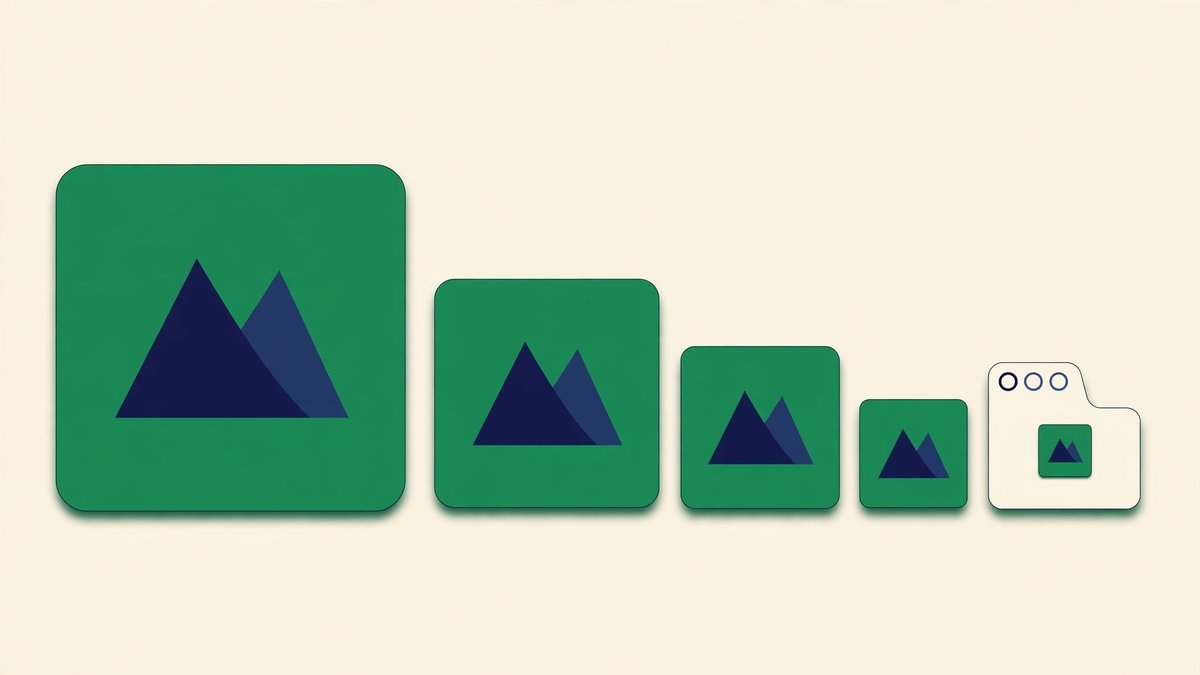
ICO is the native icon format for Windows, and it works differently from an ordinary picture. A JPG or PNG holds one image at one size. An ICO is a container: several versions of the same design, each rendered at a different size, packed into one file. Whatever needs your icon takes the size closest to what it’s displaying, rather than shrinking the biggest version and hoping for the best.
That matters because icons appear absurdly small and surprisingly large, sometimes on the same screen. A browser tab wants 16 pixels; a desktop shortcut might want 48; a high-resolution display wants far more. With only a small version, big displays look blurry. With only a big one, small displays turn detailed artwork into mush — shrinking is never as clean as a version rendered for that size.
For websites, the ICO usually sits in the site’s root folder as favicon.ico. Modern sites lean more on PNG icons declared with link tags — which this tool also provides — but ICO remains the format Windows asks for. If something has asked you for an .ico file, a renamed PNG won’t do — you need the real container.
The Sizes Inside a Proper ICO File
Our tool builds seven sizes into every ICO: 16, 24, 32, 48, 64, 128 and 256 pixels. That set isn’t random:
- 16 × 16 is the browser tab size — the smallest, sternest test your design will face.
- 24 × 24 appears in toolbars and older Windows lists.
- 32 × 32 covers desktop icons and sharper, retina-style tabs.
- 48 × 48 is the classic large desktop, shortcut and folder size.
- 64 × 64 and 128 × 128 serve larger folder views and high-resolution displays.
- 256 × 256 is the big version for the largest views, stored PNG-compressed inside the ICO — supported since Windows Vista.
Alongside it, the tool offers a PNG pack as separate files: 16, 32, 48, 64, 180, 192 and 512 pixels. The 180 file is named apple-touch-icon.png for iPhone and iPad home screens, while 192 and 512 cover Android and the WordPress Site Icon. One design gives you the Windows file and the full website set in one sitting.
If you only need the PNG side, our favicon generator guide walks through that set size by size, HTML included.
Three Ways to Start: Your Own Image, an Emoji or Your Initials
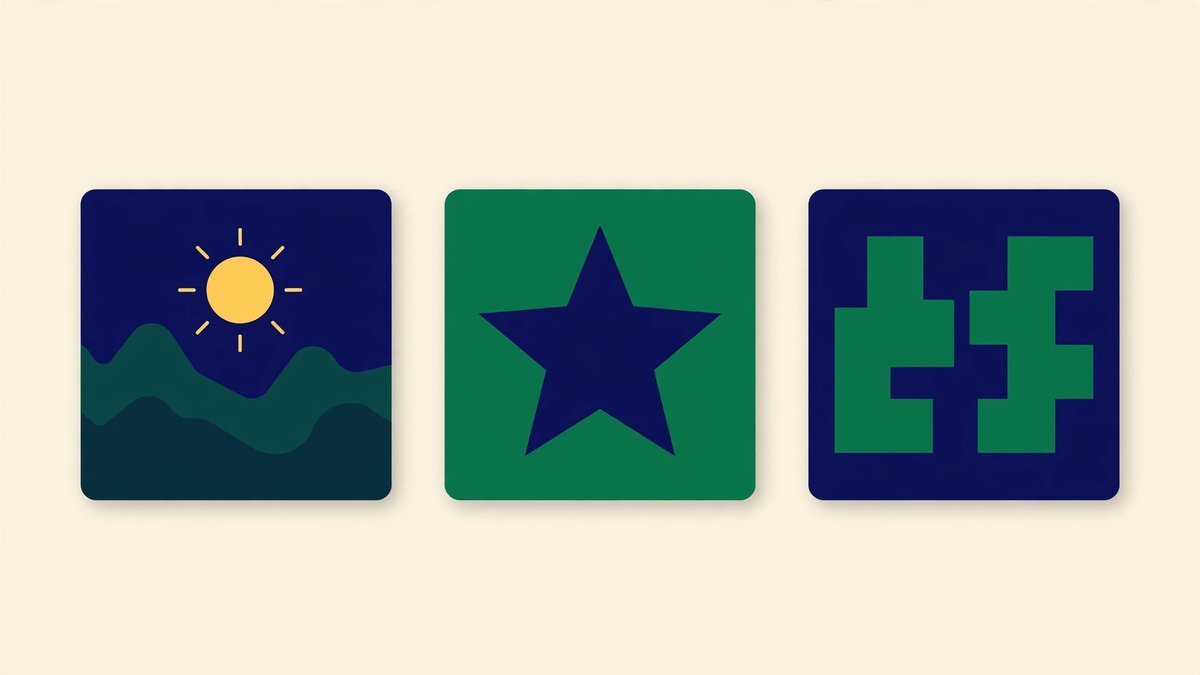
Every good icon begins with one bold idea, and the tool gives you three tabs to start from. None is best in the abstract; each suits a different job.
Starting from your own image
Upload a photo, logo or artwork — JPG, PNG, WebP or SVG all work, and square-ish works best — then zoom and nudge it until the important part fills the frame. It’s the right route if you already have a logo mark or mascot.
Be honest here, though. Converting a detailed photo into a tiny icon loses detail, because an icon is a simplification, not a shrink. A busy group photo, a detailed illustration or a logo with thin lines and small writing won’t survive at 16 pixels. Simple, high-contrast artwork with one clear subject can work beautifully; a photograph of your desk setup won’t.
Starting from an emoji
Type or paste any emoji, pick one from the quick row, and scale it from 40% up to filling the whole icon. Emoji are a clever choice for a personal blog: bold, colourful, single ideas designed to be recognised at tiny sizes. A rocket, a camera or a coffee cup says what your blog is about in one glance.
The trade-off is originality: anyone else can use the same emoji, so it will never be uniquely yours. For a hobby blog or newsletter, that rarely matters. For a business brand, treat it as a strong placeholder, not the finished identity.
Starting from text — your initials
Type one or two characters, set a heavy font weight, choose your colours, and you have the approach most professional-looking blogs use. Initials in a bold weight on a strong brand colour look deliberate at every size, and they’re unmistakably yours. Two characters is the limit — a full name crumbles at tab size.
Whichever tab you start in, the finishing options are the same: square, rounded or circle shapes; solid colour, white or transparent backgrounds. Rounded and circle shapes are baked into the files — the corners outside become transparent — so the icon looks round wherever it ends up. And be clear-eyed about it: an icon from initials or an emoji is a neat shortcut, not a substitute for a designed brand mark.
How to Use the Icon Maker
Open the icon maker and you’ll find three tabs at the top — Image, Emoji and Text — with a live preview beside them: true-size 48, 32 and 16-pixel versions and a mock browser tab. Everything runs in your browser; your image never leaves your device.
- Choose your starting point. Pick Image, Emoji or Text, then add your picture, emoji or one or two letters.
- Frame it. For an image, use the zoom and position sliders until the subject fills the square; for an emoji, set its size; for text, push the font weight towards bold.
- Style the icon. Pick the square, rounded or circle shape, then a solid, white or transparent background. In text mode, set the letter colour to stand out against it.
- Check the smallest preview first. Look at the 16-pixel version and the tab mock first. If you can’t tell what it is there, simplify — zoom in, go bolder or pick a simpler subject.
- Download the ICO. One click builds favicon.ico with all seven sizes inside it — 16, 24, 32, 48, 64, 128 and 256.
- Take the PNG pack too, if it’s for a website. Download the sizes you need, copy the HTML link tags the tool writes, and paste them into your page’s head after uploading the files to your root folder.
For a Windows folder or shortcut, the ICO is all you need: save it somewhere it won’t get moved, then point the folder at it through Properties and Change Icon.

Design Rules for Icons That Survive Small Sizes
Good icon design is mostly restraint: the bloggers who get it right have removed everything the small sizes would ruin anyway.
- One idea, filling the frame. One letter pair, one emoji or one strong shape, taking up most of the square. Two competing subjects at 16 pixels means neither can be read, and a small symbol floating in empty padding disappears in a tab.
- Contrast before brand perfection. White letters on a strong colour beat exact brand shades that sit close together. If in doubt: darker behind, lighter in front.
- Avoid thin lines and fine detail. Hairlines, subtle gradients and tiny text vanish first. Chunky shapes survive; delicate ones don’t.
- Judge it at 16 pixels, not 256. The big preview flatters everything; the tiny one tells the truth, and it’s the one readers see.
- Match the background to the job. A solid background reads well in light and dark browser themes and suits logos and photos. Transparency suits bold shapes, but pale artwork on it can vanish on a light tab.
It helps to study sites you admire. Look at their tabs: most use initials, a simplified shape or one object. For a closer look at their files, our favicon grabber pulls the icon from any website in the sizes the site itself offers — excellent homework. Borrow the simplicity, never the artwork.
Common Icon Mistakes
- Shrinking a detailed photo and hoping. A face or busy product shot becomes coloured soup at tab size. Crop to one bold subject, or switch to initials or an emoji.
- Trying to fit a whole logo in. Most logos include a name or fine detail. Use the mark alone, or just the initials — not the whole lockup in a square.
- Using a thin font or too many letters. Light typefaces and more than two characters dissolve at 16 pixels.
- Forgetting the big sizes. A tiny file alone leaves shortcuts and home screens scaling it up into a blur. Take the full ICO and PNG pack.
- Moving the ICO after linking to it. Shortcuts point at the file’s location. Move it and the icon quietly reverts to the default.
Frequently Asked Questions
What is an ICO file used for?
It’s the standard Windows icon format, used for program icons, desktop shortcuts and custom folder icons. On a website, favicon.ico in the root folder supplies the icon shown in tabs, bookmarks and history.
How many sizes should an ICO file contain?
A proper one holds several sizes so each display can use the closest match. This tool packs seven into one file — 16, 24, 32, 48, 64, 128 and 256 pixels — covering tabs, desktops, folders and large views.
Can I turn a photo into an icon?
Yes — upload it and frame it with the zoom and position controls — but keep expectations realistic. A simple photo with one bold subject can work; a busy one will lose its detail at small sizes, because an icon is a simplification, not a tiny copy.
Is an ICO or PNG better for a website favicon?
Modern websites mostly use PNG icons: browsers accept them and they handle transparency well. ICO is still the format to choose when Windows or a shortcut asks for an icon file, and it’s a valid favicon too — which is why this tool gives you both.
Does the icon maker upload my image anywhere?
No. The icons are built in your browser, on your device. Your image, emoji or text isn’t sent to a server, so it’s safe to use with a private logo or an unpublished design.
Final Thoughts
An icon is a small job with an outsized reach: it sits in every tab, bookmark, shortcut and folder your readers touch. Give it one bold idea, the full set of sizes and ten honest minutes at the 16-pixel preview, and the icon maker will hand you a real ICO and a PNG pack, ready everywhere.
Start with your initials if you’re unsure — the option that looks most deliberate and takes about a minute.


