





Text to Speech: How to Proofread Your Blog Posts by Ear

Text to speech (TTS) turns written words into spoken audio: you paste in some text, and a voice reads it back to you. For a blogger, the most valuable use isn’t turning posts into podcasts — it’s pasting in your own draft and listening to it. Your ears catch things your eyes have stopped seeing: the missing word, the sentence that runs out of breath, the paragraph that says the same thing twice. Our free text to speech tool does exactly that in your browser — paste a post, choose one of your device’s own voices, set the speed, and press play.
One honest point before anything else, because it shapes everything in this guide: this tool plays speech aloud. It does not create an MP3, an audio file or a voiceover you can publish — the browser’s built-in speech feature simply gives web pages no way to save the sound. If you need a downloadable narration for a video or podcast, you need a dedicated text to speech service or recording software. What this tool does brilliantly is free, instant listening — and for proofreading, that’s the job that matters.
How Browser Text to Speech Actually Works
There’s no clever AI server behind a tool like this. Every modern browser — Chrome, Edge, Safari, Firefox — carries a built-in feature called the Web Speech API, and the voices it speaks with are installed on your own device: the ones that came with Windows, macOS, your iPhone or your Android phone. The tool on this page is really a set of controls wrapped around that built-in feature: a text box, a voice picker, speed and pitch sliders, and play, pause and stop buttons.
That design has two consequences worth understanding. First, privacy: the tool itself never uploads or stores your text — there’s no Click Hype server in the middle. Most voices generate the speech on your device. The one exception is a handful of desktop Chrome voices, which Google generates online; if you’re pasting something sensitive, pick one of your device’s local voices and nothing leaves your machine. Second, variety: because the voices belong to your browser and operating system rather than to this page, what you hear depends entirely on where you’re listening — which deserves its own section below.
Why Bloggers Use Text to Speech
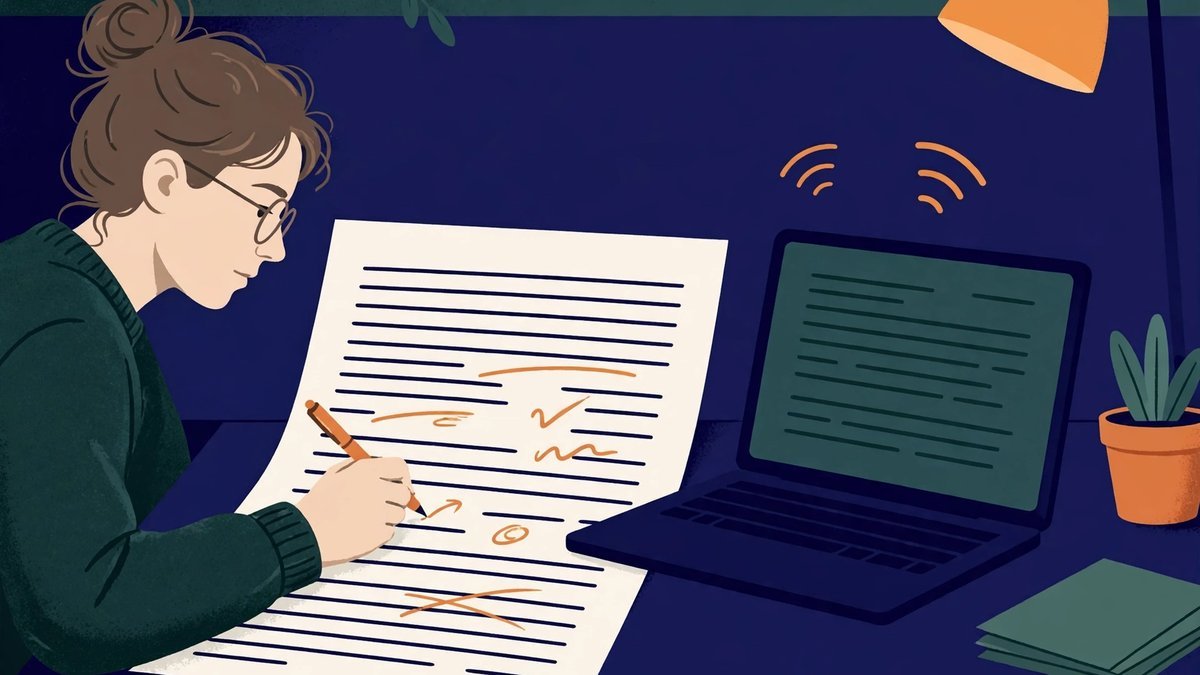
Proofreading by ear — the single best use. This is the one that earns the tool its place in a publishing routine. When you read your own writing silently, your brain auto-corrects: it supplies the word you meant to type, smooths over the awkward join, skips the repeated phrase. A voice can’t do any of that. It reads exactly what’s on the page, at a steady pace, and every flaw arrives in your ears unedited — doubled words, missing words, sentences so long you forget how they started, punctuation that makes the voice lurch or run on. Professional editors have read manuscripts aloud for centuries for precisely this reason; text to speech just saves your voice the effort.
An accessibility sense-check. Listening to your own post gives you a rough feel for how it lands with readers who use screen readers or simply prefer audio — whether headings announce themselves clearly, whether a table makes any sense, whether a link’s text means anything out of context. Treat it as a helpful early check, no more: it is not a substitute for proper accessibility testing, and nothing replaces feedback from people who actually navigate the web by ear every day.
Listening while you do something else. Drafts, research notes, a competitor’s article, the newsletter you’re about to send — anything you’d absorb on a walk, at the gym or while making tea. If the source material is long, nobody listens to a 40-page report end to end. Skim the substance first — our text summarizer guide shows how to condense long documents into their key points — then listen while you move.
Hearing flow: headings, dialogue and rhythm. Some writing only reveals itself spoken. Interview quotes and dialogue either sound like a human talking or they don’t. Headings either flow as natural signposts or land as keyword-stuffed lumps. A run of short sentences can feel punchy on the page and machine-gun-like in the ear. One listen tells you which you’ve written.

Why the Voices Sound Different on Every Device
New users open the tool on two devices, find different voice lists, and assume something’s broken. Nothing is. The picker simply lists whatever voices your browser reports: a Windows laptop might offer a couple of Microsoft voices, an iPhone offers Apple’s set, an Android phone offers Google’s, and installing extra voices in your system settings adds them here too. The tool even sorts English voices to the top and pre-selects a British English voice where one exists.
Quality varies just as much. The best browser voices — typically the ones in Edge and Chrome — sound natural, with believable pauses and emphasis. Others, especially older system voices and some Firefox offerings, sound like a satnav from 2009: intelligible, but flat and robotic. If the voice on your laptop grates, try the tool in a different browser before judging it; you may be one browser swap away from a voice you can actually listen to. And if a passage sounds odd, remember the voice only performs what’s written — flat delivery on a convoluted sentence is usually the sentence’s fault.

How to Use the Text to Speech Tool
Open the text to speech tool and the reader fills most of the page — a large text box, the voice and slider controls beneath it, and the transport buttons at the bottom.
- Add your text. Paste your draft into the box (or press “Insert sample text” to try it with an example paragraph). A live word and character count sits underneath, so you know roughly how long you’re in for.
- Pick a voice. Choose from the dropdown — English voices are grouped at the top. If you’re proofreading, pick the clearest voice you have, not the most entertaining one.
- Set the speed and pitch. Speed runs from 0.5× to 2×; leave it at 1.0×, or a touch slower, for proofreading. Pitch defaults to 1.0 and mostly matters if a voice sounds unnaturally deep or squeaky.
- Press play. Pause, resume and stop whenever you like — the status indicator shows what’s happening. Long posts are quietly split into sentence-sized chunks (about 200 characters at a time) and played back to back, because some browsers cut very long passages off mid-sentence; to you, it just sounds continuous.
- Mark up as you listen. Keep your draft open in another tab, and every time the voice trips over something, pause and fix it on the spot.
From paste to decision usually takes one listen. A 1,500-word post is roughly ten minutes of audio at normal speed — less time than a coffee going cold, and it will find errors a third read-through would have missed.
Tips for Listening Like an Editor
How you listen matters as much as pressing play:
- Slow down for proofing, speed up for skimming. Around 0.9–1.0× gives your brain time to register each word; 1.25–1.5× is fine for absorbing research, hopeless for spotting typos.
- Listen for what’s missing, not just what’s wrong. The classic catches are absent joining words (“in”, “the”, “to”) that your eyes invent when reading. If the voice sounds like it skipped a beat, it probably did — because you did.
- Follow along with the text in front of you. Ear and eye together catch more than either alone, and you can fix each problem the moment you hear it instead of scribbling notes.
- Pay attention to punctuation. The voice pauses at commas and stops at full stops. A sentence it reads as one long rush is missing punctuation; a stop-start stumble usually means too much.
- Check the headings separately. Read through just the headings in sequence. Spoken aloud, they should tell the story of the post like chapter titles — if they sound like a keyword list, they are one.
Listening tells you how a post sounds; numbers tell you how it measures. Once a draft survives being read aloud, run it through a readability checker as well — between the two, you’ll catch the long sentences your ear tolerated and the awkward ones the score never would.
Common Text to Speech Mistakes
- Expecting an audio file. The most common disappointment, so let’s repeat it: the tool plays speech, it doesn’t record it. Planning a video voiceover around a browser reader will end in a wasted afternoon.
- Proofreading at double speed. At 2× you’re absorbing gist, not wording. Errors sail past. Proofreading speed is normal speed or slower.
- Judging everything by the worst voice. One robotic system voice on one browser is not the tool’s ceiling. Try another voice, or another browser, first.
- Pasting raw formatting. Markdown symbols, long URLs, tables and code blocks read terribly — the voice will solemnly pronounce every asterisk and backslash. Paste the clean, finished text you intend to publish.
- Calling a listen an accessibility audit. It isn’t one. It’s a useful smoke test that complements real testing — and real users — rather than replacing either.
Frequently Asked Questions
Can I download the speech as an MP3 or audio file?
No. The browser’s speech feature can play sound aloud, but it offers web pages no way to capture or save that sound as a file. For a downloadable voiceover, use a dedicated text to speech service that exports audio — for listening and proofreading, this tool is all you need.
Why are the voices different on my phone and my laptop?
Because the voices live on your devices, not on this website. Each operating system and browser brings its own set — Microsoft voices on Windows, Apple’s on an iPhone, Google’s on Android. Change device or browser and the list changes with it; installing new voices in your system settings adds them here too.
Is the text I paste uploaded or stored anywhere?
Not by this tool — your text never leaves the page, and nothing is saved. Most voices then generate the speech locally on your device. The exception is a few desktop Chrome voices that are generated online by Google’s servers; if that matters for what you’re pasting, choose one of your device’s local voices instead.
Why does it read long articles in pieces instead of all at once?
Some browsers cut very long passages off part-way through. To keep playback reliable, the reader splits your text at sentence boundaries, roughly every 200 characters, and plays the pieces back to back. You hear one continuous reading; the tool is being careful behind the scenes.
Which voice should I choose for proofreading?
The clearest one your device offers — usually a standard British or American English voice in Chrome or Edge. Avoid novelty and character voices; you want a neutral reader who pronounces what’s written, not a performer. If every voice on your current browser sounds robotic, try the tool in a different browser before giving up on the method.
Final Thoughts
Text to speech is the rare tool whose best use is the unglamorous one. It won’t narrate your videos, and it won’t produce anything you can upload — what it does is sit in your publishing routine and catch the errors your eyes have gone blind to, one read-aloud at a time.
So make the text to speech tool the last step before you publish: paste the finished draft, press play, and listen like a reader who has never seen the words before. If it sounds smooth, it almost certainly reads smooth — and that’s the version worth putting your name on.


