


QR Code Generator: How to Make a QR Code That Actually Scans
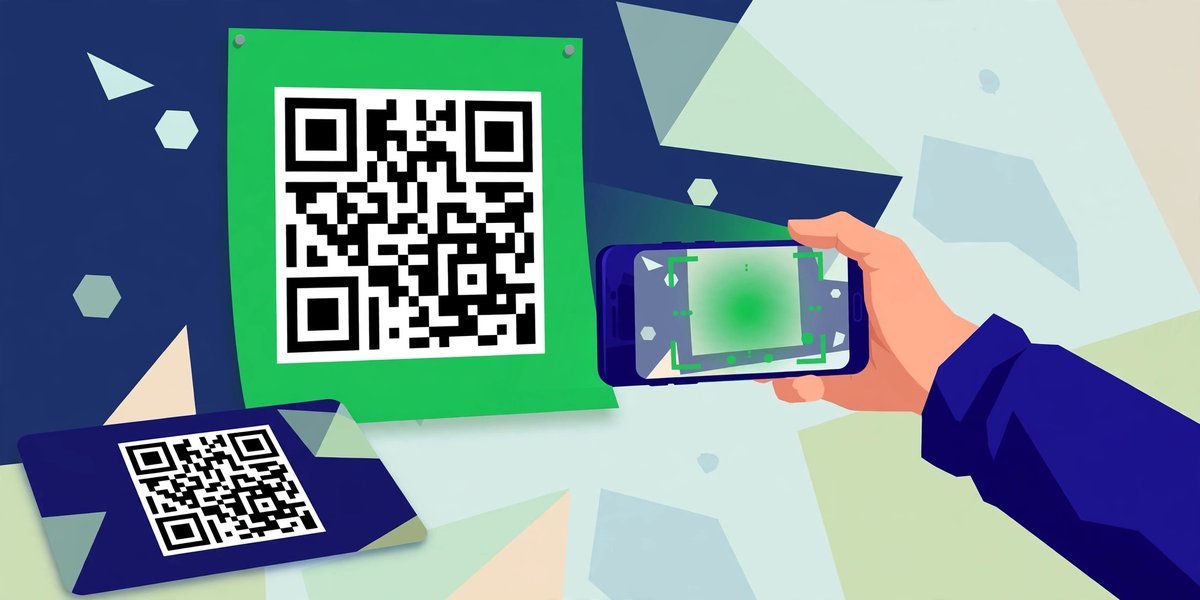
A QR code is a square picture that holds a web link or a short piece of text. Point a phone camera at it and the phone reads the pattern and opens whatever is inside — a page, a menu, a contact card — without anyone typing a character. A QR code generator is the tool that turns your link into that picture: paste in the address, it draws the code, you download it.
I learned how unforgiving these squares are the hard way. My first QR code went on a handout at a local business meetup, linking to a free checklist on my blog. Half the room couldn’t scan it: the code was small, and I’d printed it in a tasteful mid-grey that came out as mush. The generator had done its job; I’d failed at mine. This guide covers how they work, where they’re genuinely useful, and the rules that decide whether yours scans first time.
If you need the code right now, you can make one in seconds with our free QR code generator — paste a link, download the picture, done. But read on before printing: a printed code is permanent in a way a web page never is, and nearly every mistake happens after the download.
How a QR Code Actually Works
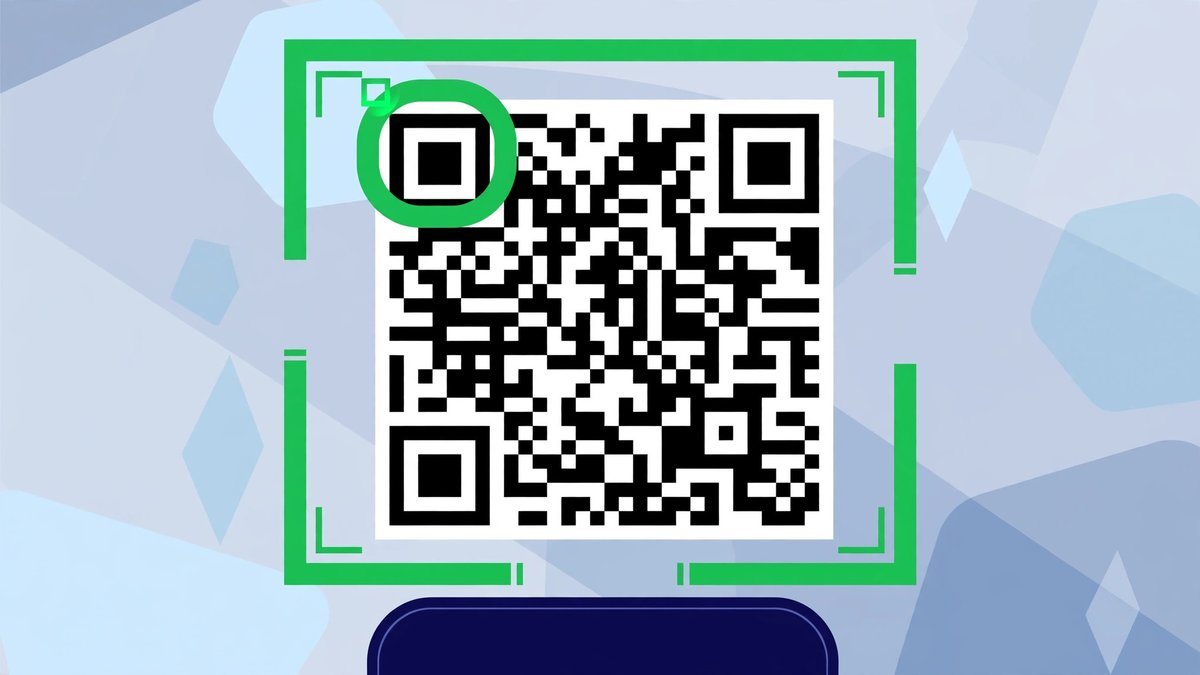
Strip away the mystery and a QR code is just text drawn as a pattern: black squares on white spell out your link in a grid a camera can read. The three large squares in the corners are finder patterns — they tell the phone which way up the code is, which is why an upside-down code still scans.
The clever part is error correction. Extra backup data is woven through the pattern, so if part of the code is scratched or covered, the phone reconstructs what’s missing. At the highest setting, a code survives roughly 30% of its surface being damaged — why codes keep working on shop windows and coffee-splashed menus.
One consequence matters before you generate anything: more data means a denser pattern. A short, clean link gives a simple code with big, easy squares. A long URL stuffed with tracking tags gives a dense mosaic that cheap cameras struggle with. For print, use the shortest honest version of your address.
What Can a QR Code Hold?
A website link is the most common payload, but the format can carry more:
- A URL — a post, landing page, menu, booking page or review link.
- Plain text — a short message, a discount word or instructions.
- Wi-Fi details — network name and password, so guests join without asking.
- A contact card — name, number, email and website, saved in one tap.
- An email — an address with the subject filled in.
- A phone number — the dialler opens with the number ready.
Whatever you choose, the destination matters more than the code. A scan is someone with their phone out, giving you five seconds of goodwill — send them to a page that loads fast and keeps the promise the print made.
Static vs Dynamic QR Codes: The Honest Difference
This is the distinction nobody explains until it’s too late. A static QR code has its destination baked into the pattern itself. It costs nothing and never expires — but once printed, where it points is fixed. You can’t change it, and you can’t see how many scans it gets. The pattern is the link.
A dynamic code looks identical but points to a short redirect run by a paid service. Scans pass through that service first, so you can change the destination later and view scan counts. The catch is the subscription: stop paying, and codes printed last year can stop working.
Our generator makes static QR codes, and I won’t dress that up. For most bloggers and small businesses that’s genuinely fine — your menu page or sign-up page isn’t moving next month. It just means being certain of the address before a print run, as you’d proofread a phone number on a card. If you’ll need to swap destinations or count scans, that’s a fair reason to pay for a dynamic service.
Where Bloggers and Small Businesses Actually Use QR Codes
The pattern is always the same: print reaches people whose phones are already in their hands, and the code removes the typing.
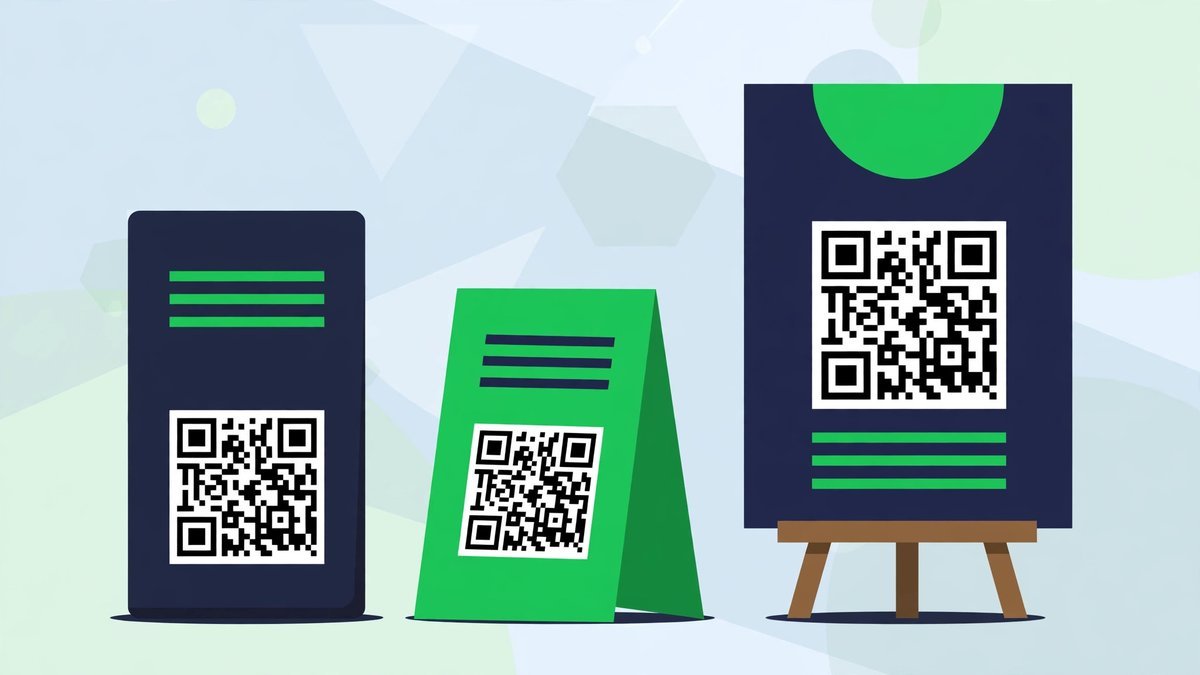
- Business cards and flyers — link to your best page, not your bare homepage; a specific guide or booking page converts far better.
- Shop windows and café tables — menus, opening hours, a reviews page, the Wi-Fi code by the till.
- Product packaging and labels — setup instructions, a demo video, a reorder page.
- Event posters and banners — ticket links and details. Distance changes everything: a poster read from two metres needs a far bigger code than a card.
- Print lead magnets — a printed workbook at a workshop, with a code on the back page sending readers to the opt-in page for the full version.
- Book covers and newsletters — bonus material, or a “scan to read the full post” code beside an excerpt.
- Talk handouts — the links audiences would otherwise photograph off your slides.
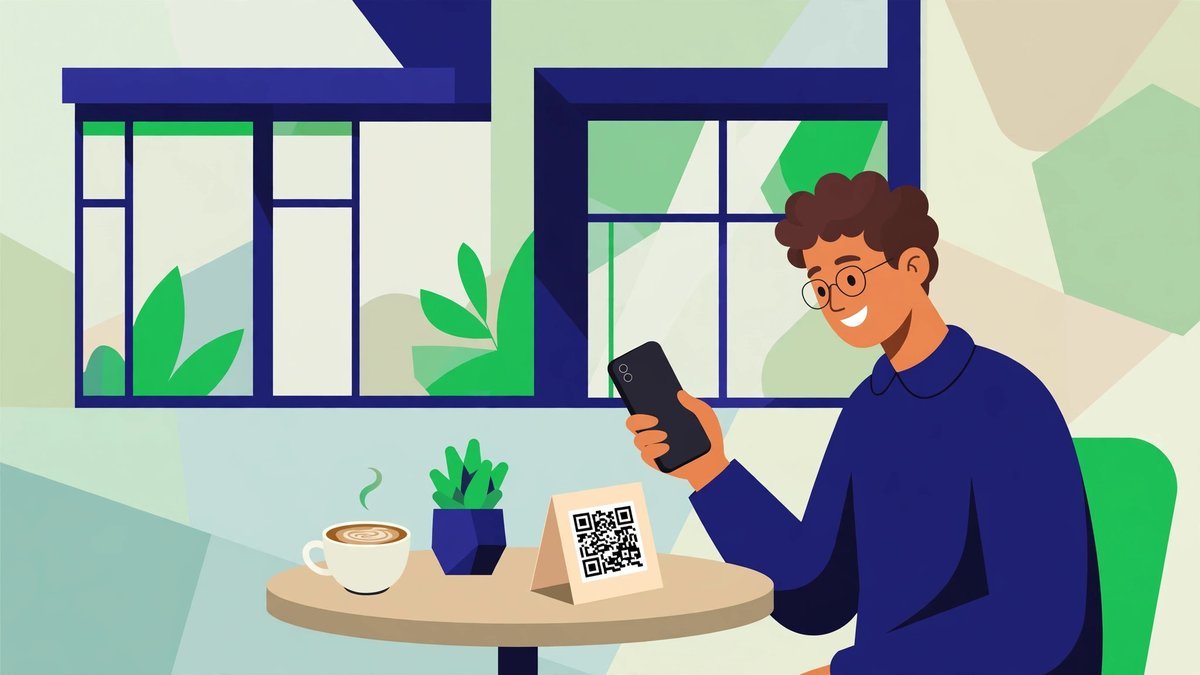
Presentation helps more than people expect. Put a short instruction beside the code — “Scan for the menu”, “Scan for the free checklist” — because a naked square leaves some people guessing. A little branding helps too: a small logo made with our icon maker, printed beside the code, makes it look deliberate rather than dropped in.
Promoting the same offer online? Make the matching announcement graphic with our social media image resizer, so the poster, the post and the landing page look like one campaign.
And if the code is going on your website or inside a PDF, remember it’s just an image file — keep it small and sharp, which our image compressor guide walks through step by step.
How to Make a QR Code with the Free Generator
- Choose the destination and check it on your phone. It must load quickly and read well on a small screen. Fix the page before the code.
- Copy the exact link — the shortest clean version — and check it character by character. A typo here gets printed a hundred times.
- Paste it into the generator and create your code.
- Download the PNG. PNG keeps the squares crisp, which scanners prefer over a blurry image.
- Test it yourself before printing. Scan it on screen, then print one copy and scan that too. Both, every time.
That’s the whole job: the QR code generator draws in seconds what would take you a week by hand. The craft is never in making the code — it’s in the destination, size, contrast and test scan.
Design and Print Rules That Decide Whether It Scans
- Size it for the distance. About 2 cm is the smallest sensible size up close — a card, a menu, a label. For posters, allow roughly a tenth of the scanning distance: from a metre away, print it around 10 cm across.
- Keep the contrast high. Dark code, light background; black on white is safest. Inverted codes — white on dark — fail on plenty of phones.
- Respect the quiet zone. Leave clear empty space on all four sides, about four little squares wide. Crowding it against text or a border breaks scans.
- Never stretch, squash or crop it. Keep it square, and never trim the corners — those big squares are how the phone finds the code.
- Mind the surface. Glossy lamination reflects light into the camera, curved bottles bend the pattern, and a crease through a flyer is a silent killer. Matte, flat surfaces scan best.
- Don’t let brand colours betray you. A pale sage or soft grey code may look lovely and scan terribly — my meetup mistake. Pretty and readable are both possible; readable wins every tie.
- Test with two different phones. An older budget Android and a recent iPhone read codes with very different enthusiasm. Test both, in the lighting where the code will live.
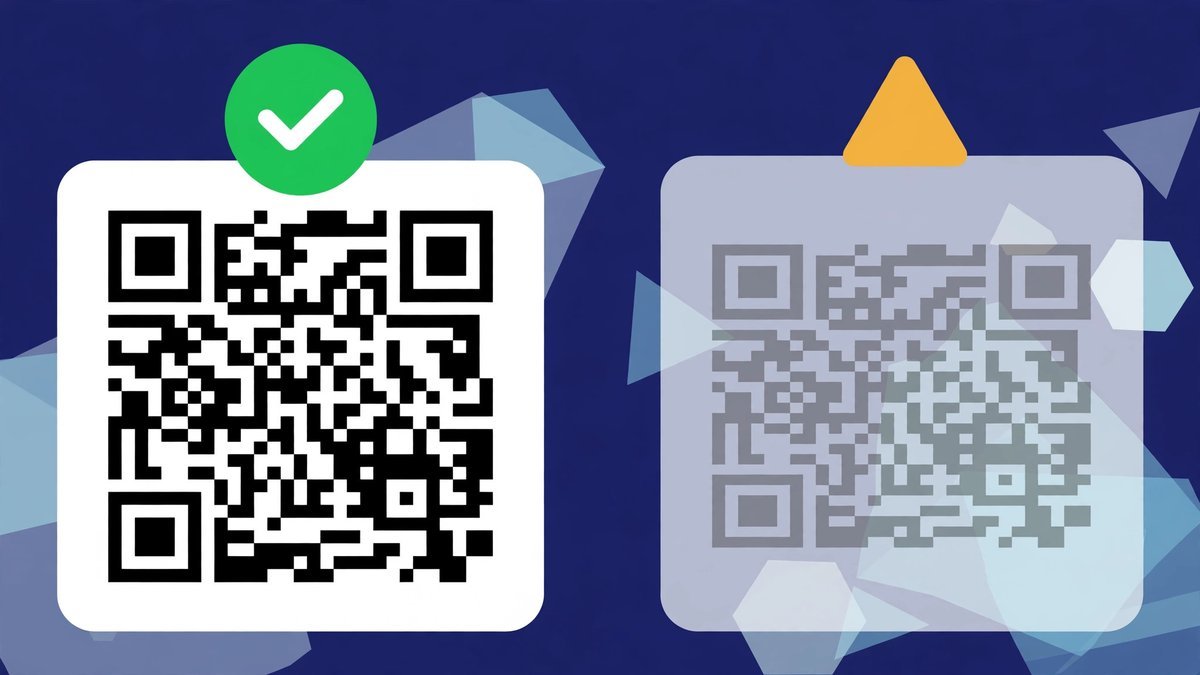
Get these right and scanning feels instant; get two wrong at once and people quietly give up — and you never hear about it.
A Quick Word on QR Code Safety
One habit worth passing on: don’t scan random codes blindly. Your phone shows a preview of the link before opening it — glance at it, especially on stickers placed over other codes in public, a known trick around parking meters. As the person creating codes, the courtesy runs the other way: link to your real, recognisable domain, so the preview looks like the business people think they’re dealing with.
Common QR Code Mistakes
- Printing it too small. A 1 cm code on a card is decoration, not a tool.
- Choosing low-contrast colours. Light, soft and subtle is precisely what a camera can’t read.
- Skipping the test scan. The priciest mistake here, and it takes a minute to avoid.
- Linking to a page that isn’t mobile-friendly. Every scan happens on a phone; if the page needs pinching and zooming, the code did its job and the page undid it.
- Printing before proofing the URL. One wrong character, found after 500 flyers come back, is a lesson best learned from other people’s stories.
- Treating the code as an afterthought. Squeezing it into leftover space is how codes end up tiny, crowded and contrast-free.
Frequently Asked Questions
Do QR codes expire?
A static QR code never expires — the link sits in the pattern itself, so it works while the destination page exists. Move or delete that page and the code will scan perfectly and lead nowhere, which is why you should point codes at pages you intend to keep.
Can I change where my QR code points after printing?
Not with a static code. The destination is fixed in the pattern, so changing it means generating a new code and reprinting. Changing destinations afterwards is what paid dynamic services exist for — they route scans through a redirect you control.
How small can I print a QR code?
About 2 cm square is the practical minimum for close-range scanning, like a card or menu. The further away the scanner stands, the larger the code needs to be — roughly a tenth of the scanning distance is a reliable guide.
Can I track how many people scanned my code?
Not with a static code: nothing sits between the phone and your page to count the visit. Analytics give a rough idea if the code points to a print-only page, but true scan counts need a dynamic service.
Are QR codes free to use?
Yes. Creating a static QR code costs nothing, using one costs nothing, and there are no royalties or licences — the format is open for anyone to use. You only pay for extras like editable destinations or scan tracking from a dynamic provider.
Final Thoughts
A QR code is a bridge between the printed world and the phone in your reader’s pocket, and bridges either work or they don’t — nobody admires one that almost holds. Make yours properly: a short, checked link to a mobile-friendly page, printed big enough and dark enough, with breathing room around it, tested on two phones before the print run. Do that with the free QR code generator, and the humble square stops being a gamble and starts quietly doing its job.